

Team Management
FireHydrant teams allow you to quickly assign the right group of people to an incident from your chat application or the FireHydrant UI. You can use FireHydrant Teams to:
- Automatically assign responders to incidents based on various criteria, including impacted infrastructure, tags, and any other incident parameter
- Organize and see which team owns which components throughout your infrastructure
- Automatically assign on-call responders from your alerting provider to an incident
Teams Directory
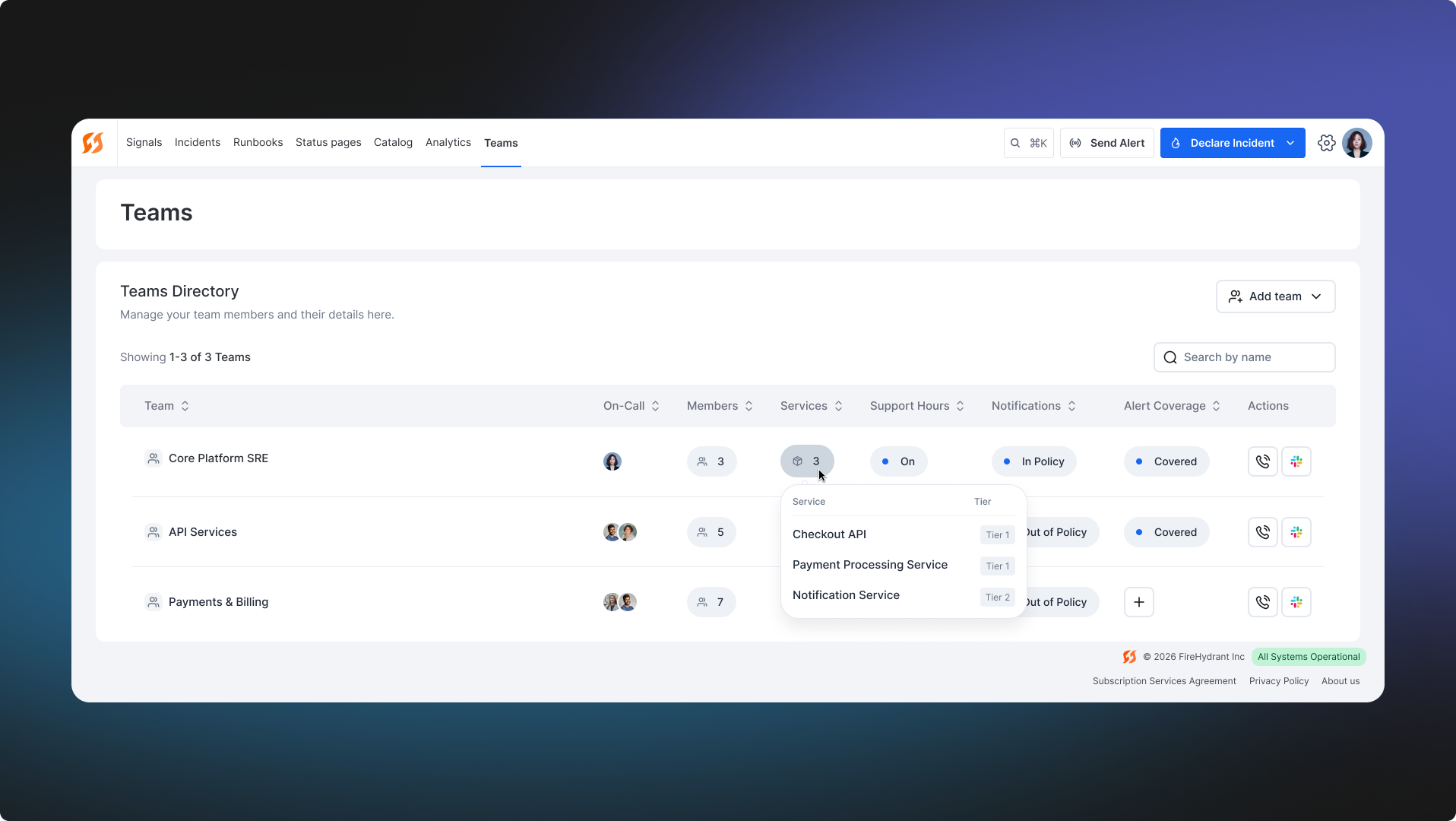
The Teams Directory is the main landing page for managing teams. It displays all teams in a table with at-a-glance status columns for each team:
- On-Call — shows who is currently on call for the team
- Members — shows a count of team members; hover to see a popover with each member's name and incident role
- Services — shows how many services the team owns
- Support Hours — shows whether the team's support hours are currently active (On/Off)
- Notifications — shows whether team notification settings are in or out of policy
- Alert Coverage — shows whether all on-call shifts are covered
- Readiness — shows whether the team's services meet readiness checklist requirements
Actions
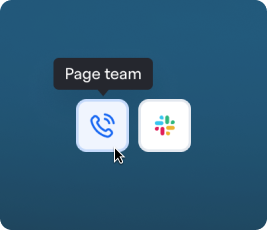
Each team row includes an Actions column with two quick-action buttons:
- Call/page icon — page the team directly from the directory without navigating to the team's detail page
- Slack icon — open the team's designated Slack channel directly from the directory
Quickview
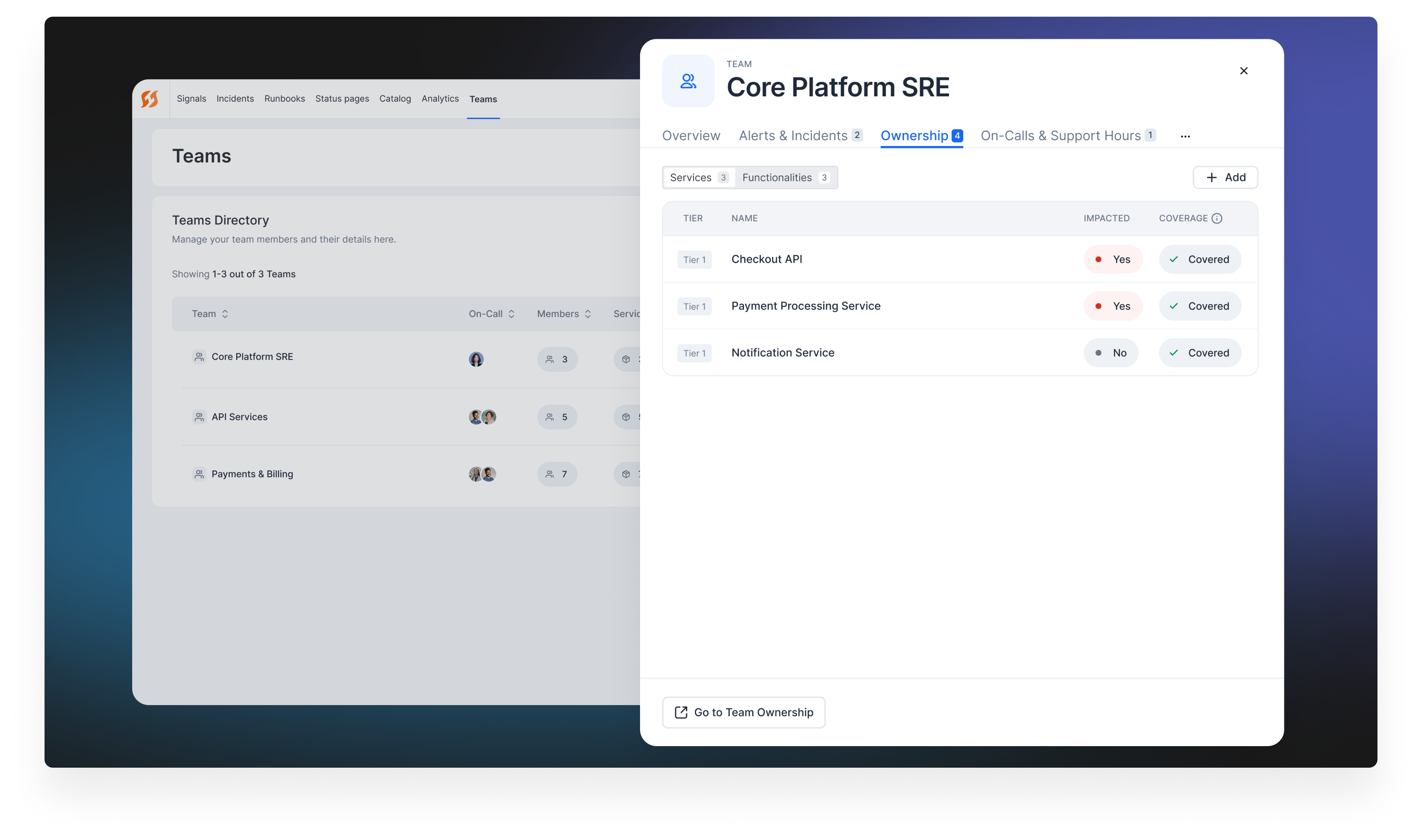
Each team row also shows a Quickview button on hover. Clicking it opens a read-only side drawer that lets you review team details without leaving the Teams Directory. The drawer includes the same tabs as the full team detail page (Incidents & Alerts, Ownership, Members, On-call & Support Hours, Escalation Policies, and more). A Go to Incidents & Alerts button at the bottom links to the Incidents page with a filter pre-applied for that team.
Creating a team
To create a new team, click Add teams in the top right corner of the Teams Directory. You will be presented with three options:
- Create a team — manually define a new team without importing from an external provider
- Import from Opsgenie — pulls teams, schedules, escalation policies, and members from your Opsgenie account
- Import from PagerDuty — pulls teams or services, schedules, escalation policies, and members from your PagerDuty account
For a full walkthrough of the import process, see Migrating Teams from PagerDuty or Opsgenie.
Team detail page
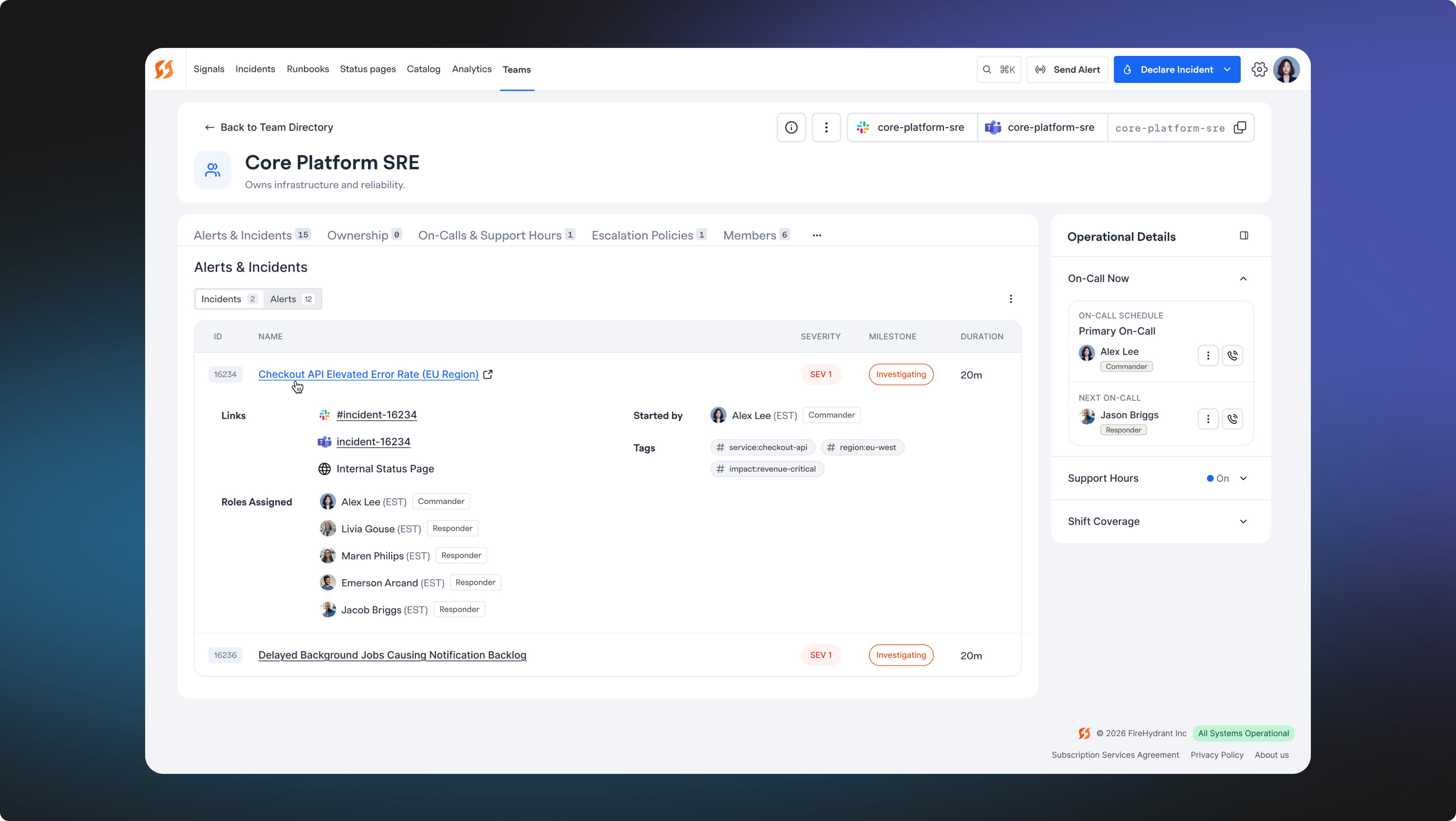
Clicking a team name opens the full team detail page. The page is organized into a scrollable tab bar with the following tabs:
Incidents & Alerts
View all incidents and alerts associated with this team. Use the Incidents and Alerts sub-tabs to switch between views.
- Incidents — shows all incidents where this team was assigned as a responder, with columns for Name, Severity, Milestone, and Duration
- Alerts — shows active and recent alerts associated with this team's services and functionalities
Ownership
Manage which services and functionalities this team owns. Use the Services and Functionalities sub-tabs to switch between views. Each sub-tab shows a table with Tier, Name, Impacted, Coverage, and Last Updated columns.
- Click + Add service or + Add functionality to assign ownership. A search modal lets you find items across both services and functionalities in a single dropdown. Items that already have an owner are marked with a warning indicator.
Note:When an owning team is set on an object, only members of that team can make updates to it. If you assign an owning team and you are not a member of that team, you will immediately lose edit access after saving unless you have Owner permissions.
Members
Manage team membership and incident roles. Members listed here are automatically eligible for assignment when the team is added as a responder to an incident. Memberships can also link directly with on-call schedules from Signals or 3rd-party alerting providers. Members with the Viewer organization role can't be given team permissions. To change that, update their organization role in User Administration.
Note:FireHydrant provides default Incident Roles, but you can configure roles however you like. FireHydrant also allows automating team assignments using SSO and SCIM.
On-call & Support Hours
Configure when the team is on call and when they are available to respond. Use the On-call Schedules and Support Hours sub-tabs to switch between views.
- On-call Schedules — create and manage on-call schedules that define which team members are on call at any given time
- Support Hours — set availability windows for the team to define when coverage should be enforced
Escalation Policies
Define how alerts escalate within the team when the primary on-call responder does not acknowledge. See Escalation Policies for full configuration details.
Alert Triggers
Configure how incoming alert payloads are handled for this team. Use the Rules, Webhooks, and Heartbeats sub-tabs to switch between views.
- Rules — define what action Signals should take when an incoming payload matches specific criteria, including which escalation policy to activate
- Webhooks — manage webhook endpoints that send alert payloads to this team
- Heartbeats — view the status of this team's heartbeat monitors, including name, last received check-in, overdue-at time, and online/offline status. See Heartbeat Monitoring
Call Routes
Configure call routing for the team. See Call Routes for full configuration details.
Runbooks
View and manage runbooks owned by this team. See Runbook Ownership for more details.
Analytics
View team-level analytics including incident response metrics and alert trends.
Right side panel
The team detail page includes a persistent right side panel showing live status at a glance:
- On-Call Now — shows which team member is currently on call
- Support Hours — shows whether the team's support hours are currently active
- Shift Coverage — shows any unclaimed on-call shifts in the next 60 days
Assigning on-call users from alerting providers
FireHydrant supports assigning users to roles from on-call schedules directly within teams if you are using a 3rd-party alerting provider. These are the providers FireHydrant supports:
Once your chosen alerting provider is set up and configured, you should see your escalation policies, on-call schedules, or routing keys available in the dropdown when configuring team membership.
Note:To assign on-call users when using FireHydrant's Signals, we recommend the following two approaches:
- Assign a Role runbook step - On top of specific users, this Runbook step allows choosing Signals Escalation Policies and On-Call Schedules. When the step executes, it will dynamically look up whoever is on-call according to the chosen policy/schedule and assign them.
- Associating Teams in Service Catalog - When a Team is a responder to a Service/Functionality and it has a default escalation policy, FireHydrant will automatically look up who's on call in that EP when the Service/Functionality is impacted on an incident.
Component ownership
FireHydrant teams can own several components or objects throughout the FireHydrant platform. The default behavior is that anyone with Member permissions and higher can make edits to most settings in FireHydrant.
But when an owning team is set on an object, only members of that team can make updates to that object henceforth. FireHydrant supports team ownership for the following items:
Ownership is managed directly from the Ownership tab on the team detail page.
Next Steps
Once you have your teams configured, you can continue expanding your usage of FireHydrant:
- Learn about assigning users, teams, and roles to incidents
- Set up some Services or Functionalities in the Catalog and set the responding teams so that whenever an incident occurs, users always know which team(s) need to be involved for which services
- Learn more about setting up escalation policies, on-call schedules, and more with FireHydrant Signals
Updated 8 days ago