

Page Responding Teams for Impacted Services/Functionalities
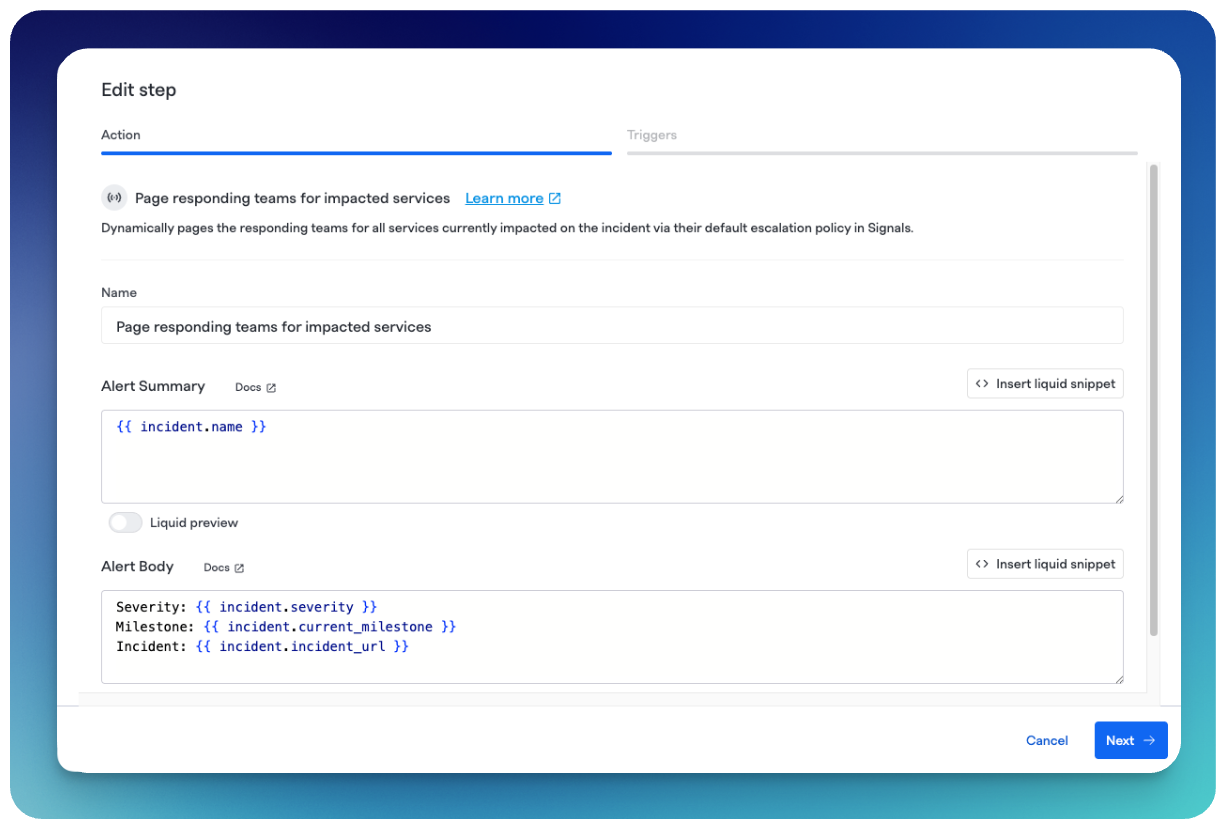
Page Responding Teams for Impacted Services/Functionalities Runbook step
These runbook steps allow you to automatically page the owning teams of any Services or Functionalities that are marked as impacted on an incident. Unlike the Page people via Signals step, no hardcoded targets are required. The step dynamically resolves the right teams at execution time using your Service Catalog.
Use this step when you need conditional, service-aware paging (e.g., SEV1 only) without maintaining a separate runbook step per team.
Prerequisites
For successful paging, two Service Catalog requirements must be met:
- Each service or functionality you want to trigger paging for must have a team set as a Responder.
- Each responding team must have a default Escalation Policy configured.
Components missing either requirement will be skipped when the step executes. Note that skipping is silent; no error or notification is raised. If a team is skipped due to a missing Escalation Policy, their on-call responders will not be paged. We recommend auditing your Service Catalog to ensure all responding teams have a default Escalation Policy configured before relying on this step in production.
Configuration
- When editing or creating a Runbook, click + Add Step and search for the FireHydrant dropdown.
- Select either Page Responding Teams for Impacted Services or Page Responding Teams for Impacted Functionalities, depending on which component type you want to drive paging.
- Fill out the following fields:
-
Name (required): Descriptive identifier shown on the Runbooks tab
-
Alert Summary(required): Alert title sent to each team; defaults to the incident name
-
Alert Body(optional): Additional context included in the alert. This text is sent to all paged teams. Each team's alert also automatically includes a list of the impacted services or functionalities they own, appended after your Alert Body text.
Note: the auto-appended list of impacted components is not customizable via Liquid templates.
-
- Click Save on the modal, then click Save Runbook at the top right to persist your changes.
Execution Behavior
Upon firing, the step identifies all currently impacted services or functionalities, resolves their responding teams from the Service Catalog, and pages each team's default Escalation Policy via Signals. Individual alerts are created per team and automatically linked to the incident.
If the same team owns multiple impacted services or functionalities, they are paged once — not once per service. Deduplication is applied automatically.
These steps are rerunnable, which is useful when new services or functionalities are added to an incident mid-response. On each re-run, teams that were already paged by a prior execution of this step are excluded, so only teams newly responsible for added impacts will be paged. To trigger this step automatically when impacts are added, configure it with the Impact Added repeat condition (see Runbook Conditions below).
The incident Timeline will reflect each alert generated via this step.
Note:This step always pages each team's default Escalation Policy. Per-team EP overrides are not currently supported.
Using Runbook Conditions with These Steps
These steps support full conditional logic, including severity, incident type, milestones, and tags, enabling service-aware paging workflows beyond Auto-Alerting capabilities.
To automatically re-page when new impacts are added to an incident, set the step's repeat condition to Impact Added. This causes the step to re-fire each time a new service or functionality is marked as impacted, paging only the teams associated with the newly added components.
Updated 7 months ago