

Preview & Export Retrospectives
An important part of retrospectives is the ability to share them. FireHydrant offers several capabilities to flexibly export incident reviews.
Customizable Export Templates
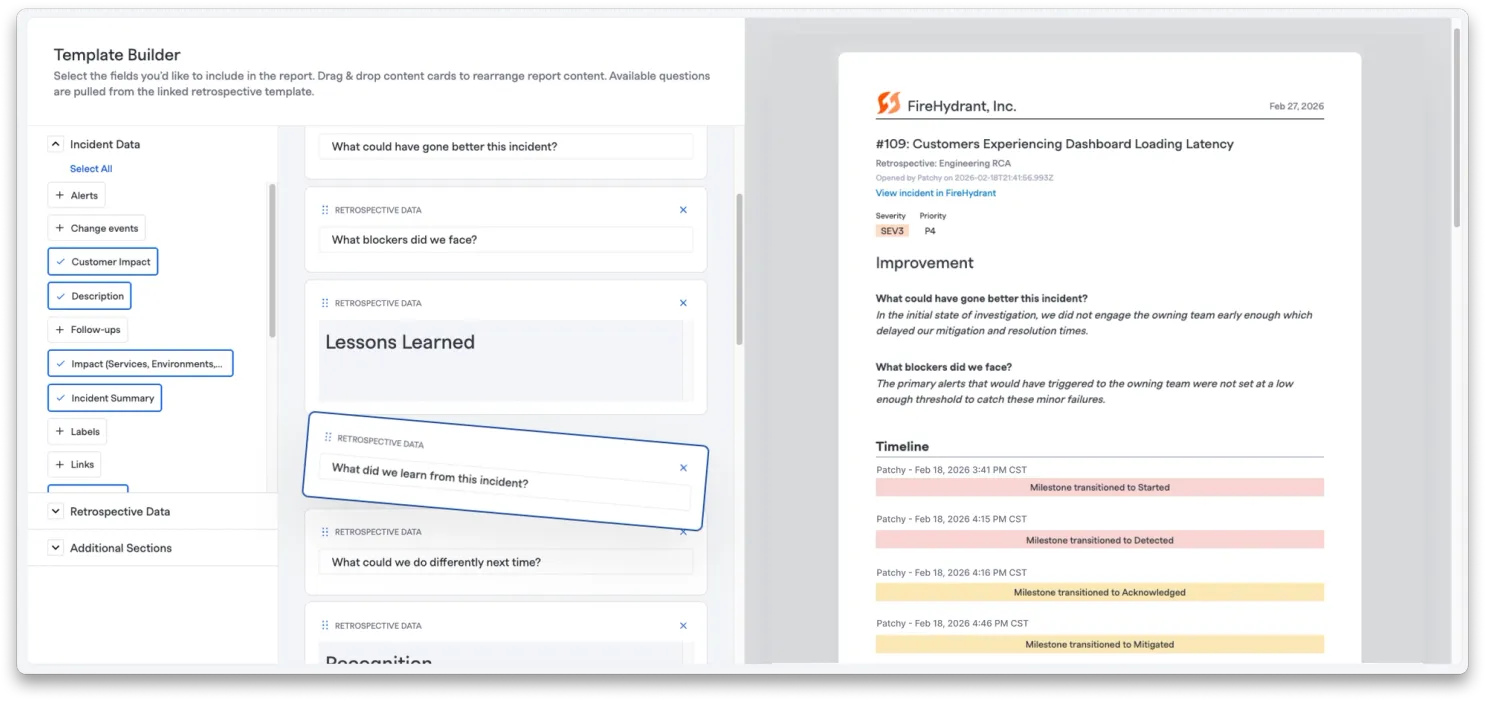
You can now customize how your retrospectives export by configuring export templates directly within your Retrospective Template settings. This gives you full control over what gets included when you share retrospectives via PDF, Confluence, or Google Docs.
What You Can Customize
Within each Retrospective Template, you can configure:
- Section selection - Choose which sections and fields to include in exports
- Layout and formatting - Control how information is structured and displayed
- Custom text fields - Add custom content or context to your exports
- Field ordering - Arrange sections in the order that makes sense for your audience
These export configurations are tied to each Retrospective Template, meaning you can have different export formats for different incident types or teams. When you export via PDF, Confluence, or Google Docs, the system will use your configured template to generate the export exactly as you've specified.
Retrospective Export Templates
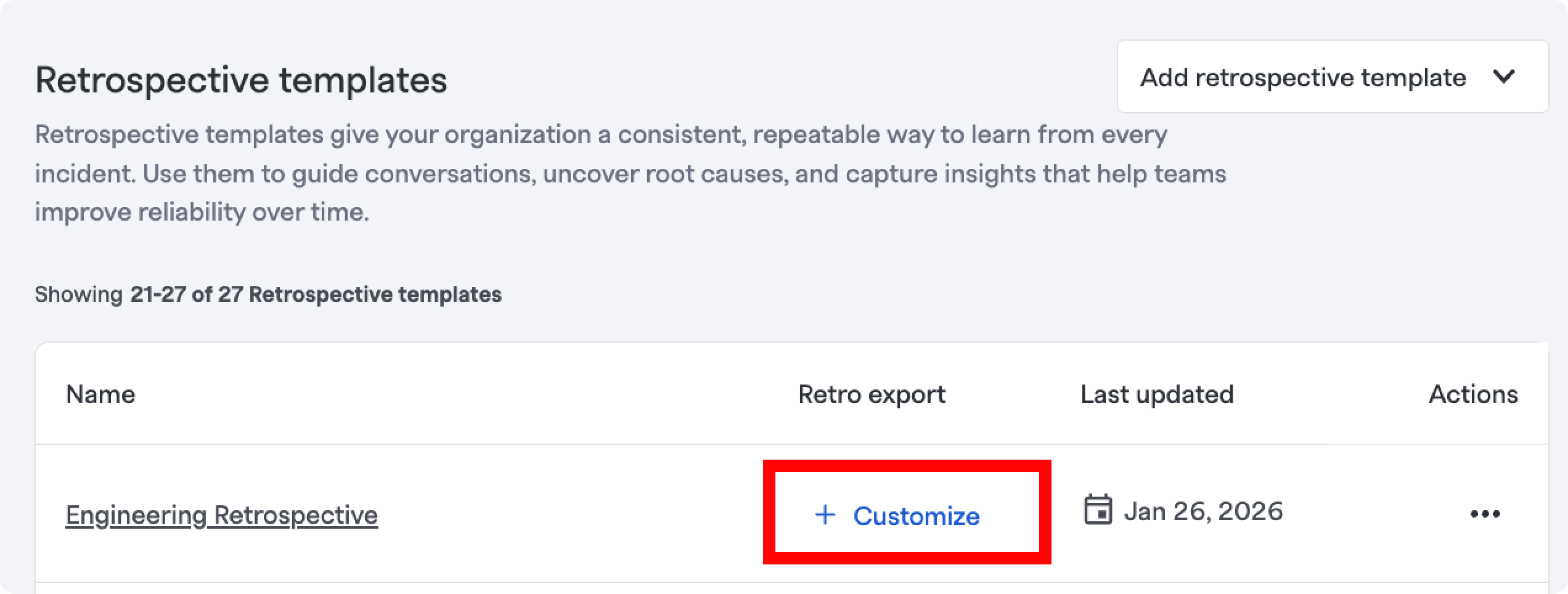
Customize Retro Export Button
You may update the export format for a specific Retrospective Template by creating a specific retro export. When you select Customize or Edit, you will then be brought to the export template builder experience. Within the export template builder you can order and customize the specific data to be presented from a completed retrospective.

Incident Specific Modify Export Template Button
You may also edit a retrospective specific to an incident. From within an incident, you can view the export of a retrospective and made edits to fit your exact needs. Any changes made to an incident specific retrospective export template will only be saved for that specific incident, not applied to the base template.
Email Share
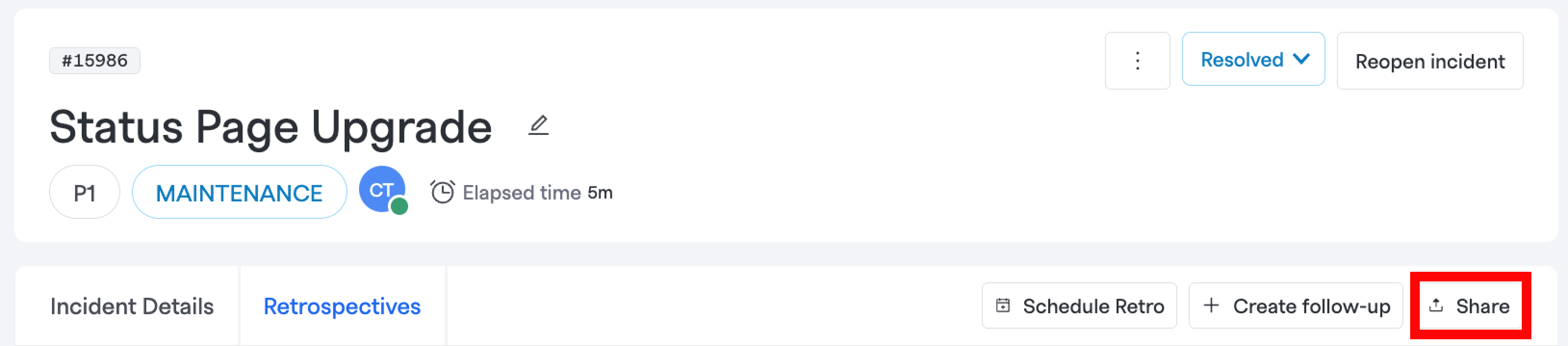
Retrospective Share Button
When finished with the Retrospective, you can click "Share" at the top right when on the "Retrospectives" tab. This will open a modal where you can confirm who you'd like to email or share the retrospective with (by default, all assignees on the incident will be included). Once confirmed, the link to this Retrospective will be sent via email.
Export PDF
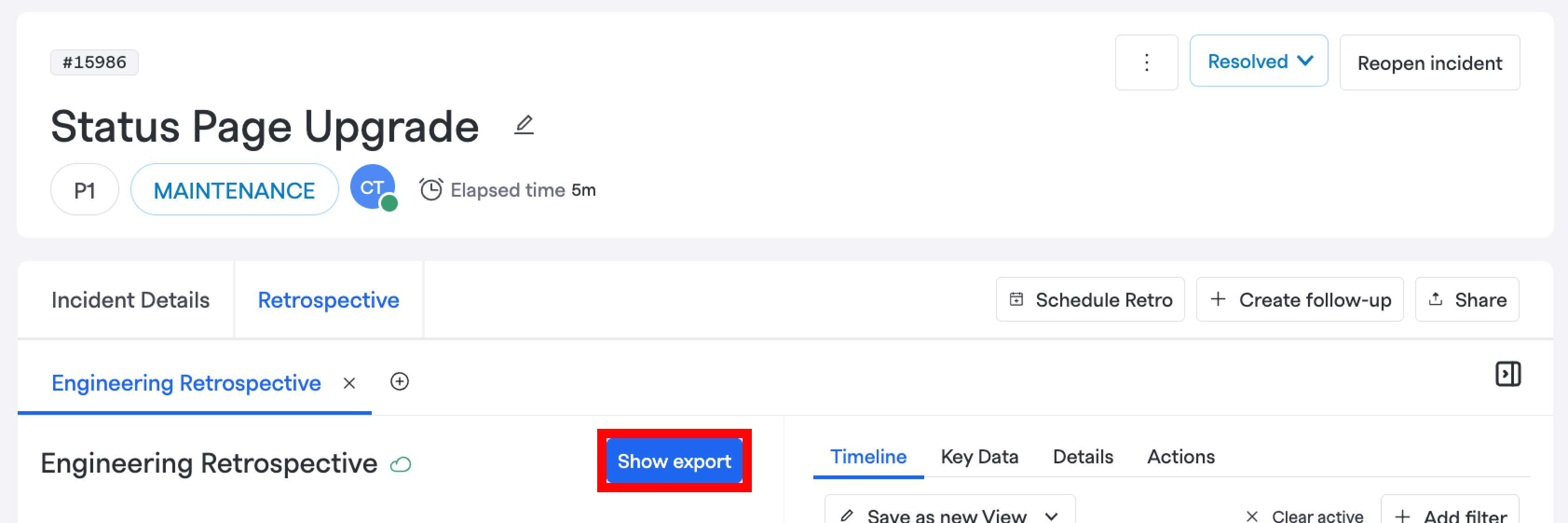
Show export button
Within a retrospective tab, you can select the "Show export" button. This will dynamically render a PDF preview according to the current template being viewed, and this includes all the questions within the template as well as the details and other data shown on the right-hand side.
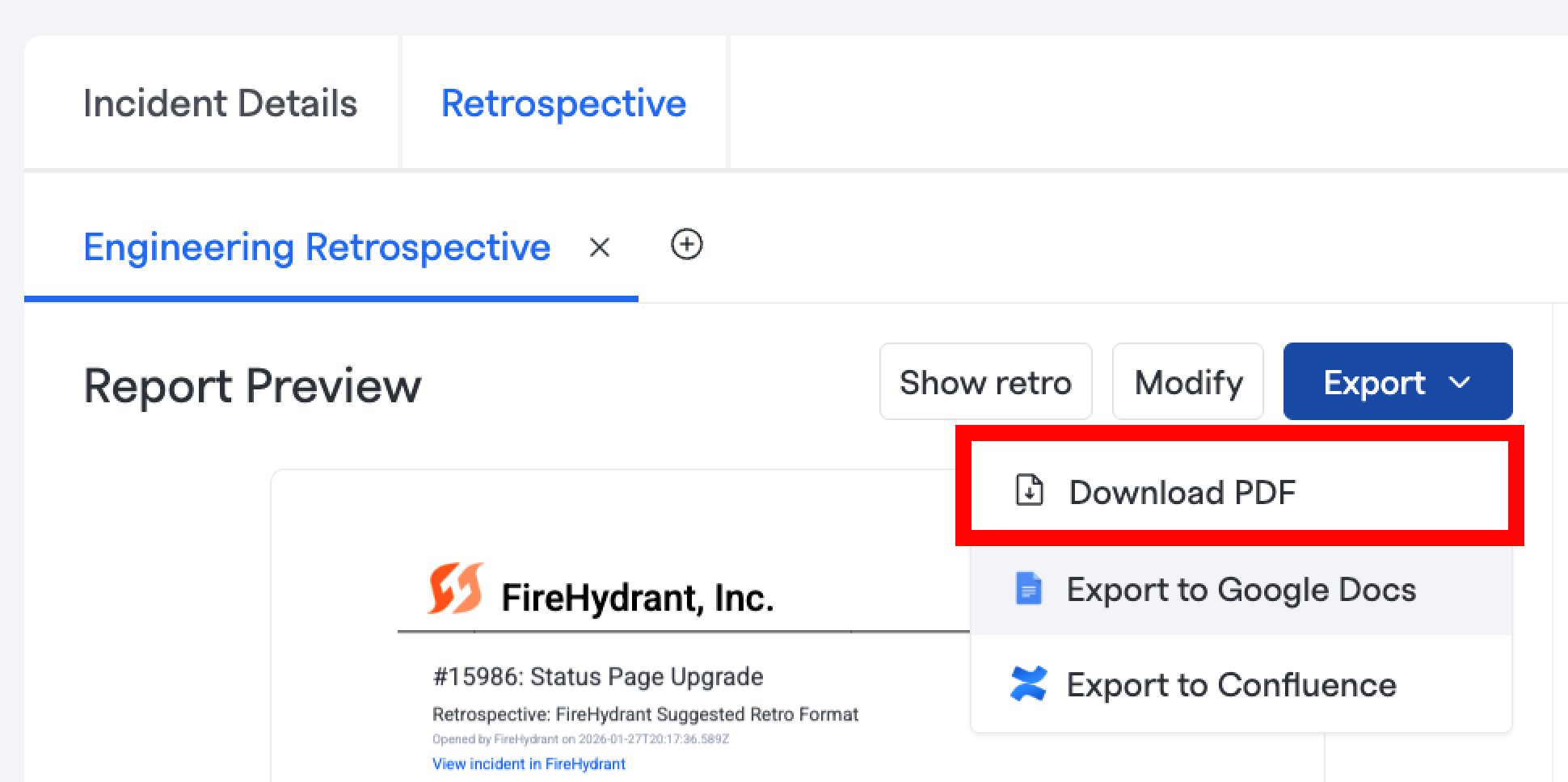
Download PDF button
You can then select Export -> Download PDF to begin the download of the report. If there are required fields, a warning will be displayed if those haven't been filled out.
Copy to Markdown
You can also copy the retrospective as markdown directly to your clipboard without needing any external integrations. Click the "Export" button and select "Copy to markdown" to copy the full retrospective report as formatted markdown. This is useful for pasting into chat applications, documents, or any other system that supports markdown.
Confluence
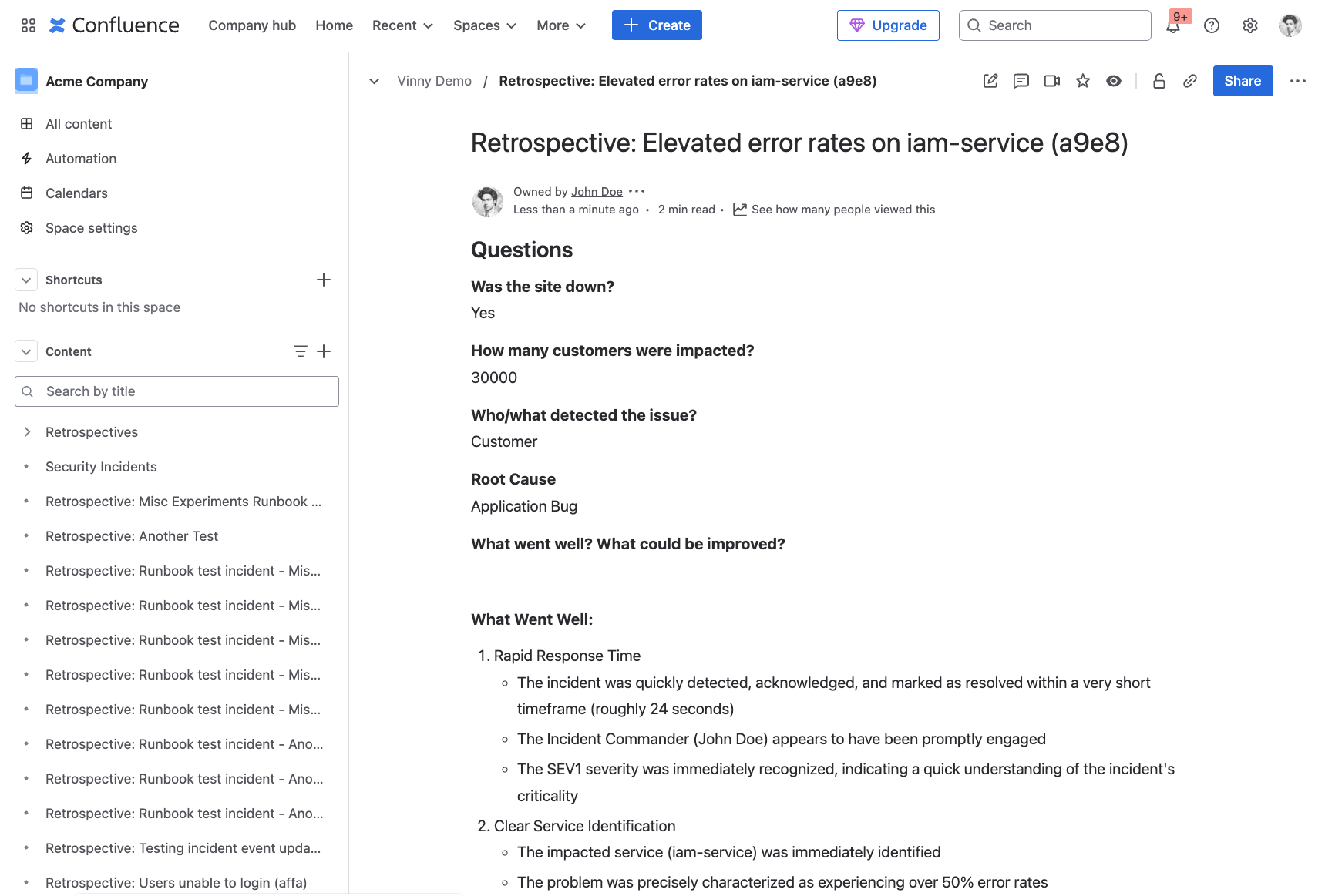
Example Confluence export
FireHydrant has a Confluence Cloud integration that allows exporting retrospectives and postmortems to Confluence documents. If you haven't already, you'll first need to setup the integration.
Runbook Steps
Once done, there will be two new Runbooks available to you:
- Export Incident Retrospective Template(s) to Confluence - Exports all attached Retrospective templates as configured to Confluence.
- Export Retrospective to Confluence - Exports a specific, configurable template in Confluence's Markdown flavor to Confluence, which is fully configurable and editable within the Runbook step
For most users, the first step to export Template(s) will meet use cases as they directly utilize configured Retrospective Templates settings.
However, for advanced users who want more control, the other step will allow full configuration and control over the template, with Markdown Support and Template Variables support.
Manually-initiated export
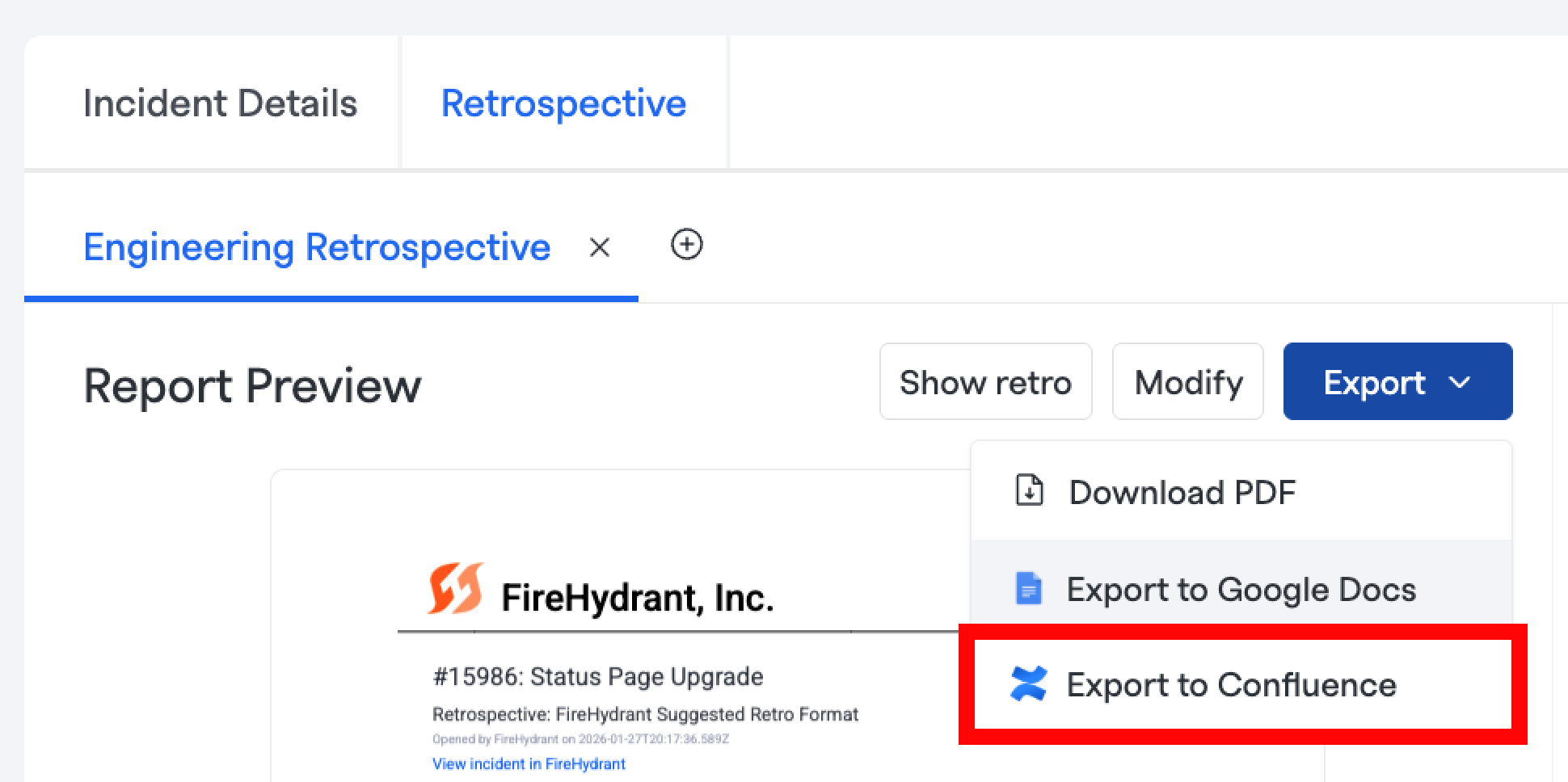
Manual "Export to Confluence" Button
Outside of Runbooks, you can also directly initiate an export to Confluence by clicking the Export in the Retrospective view and choosing "Export to Confluence." This requires the integration to be installed but does not require the Runbook step.
Google Docs
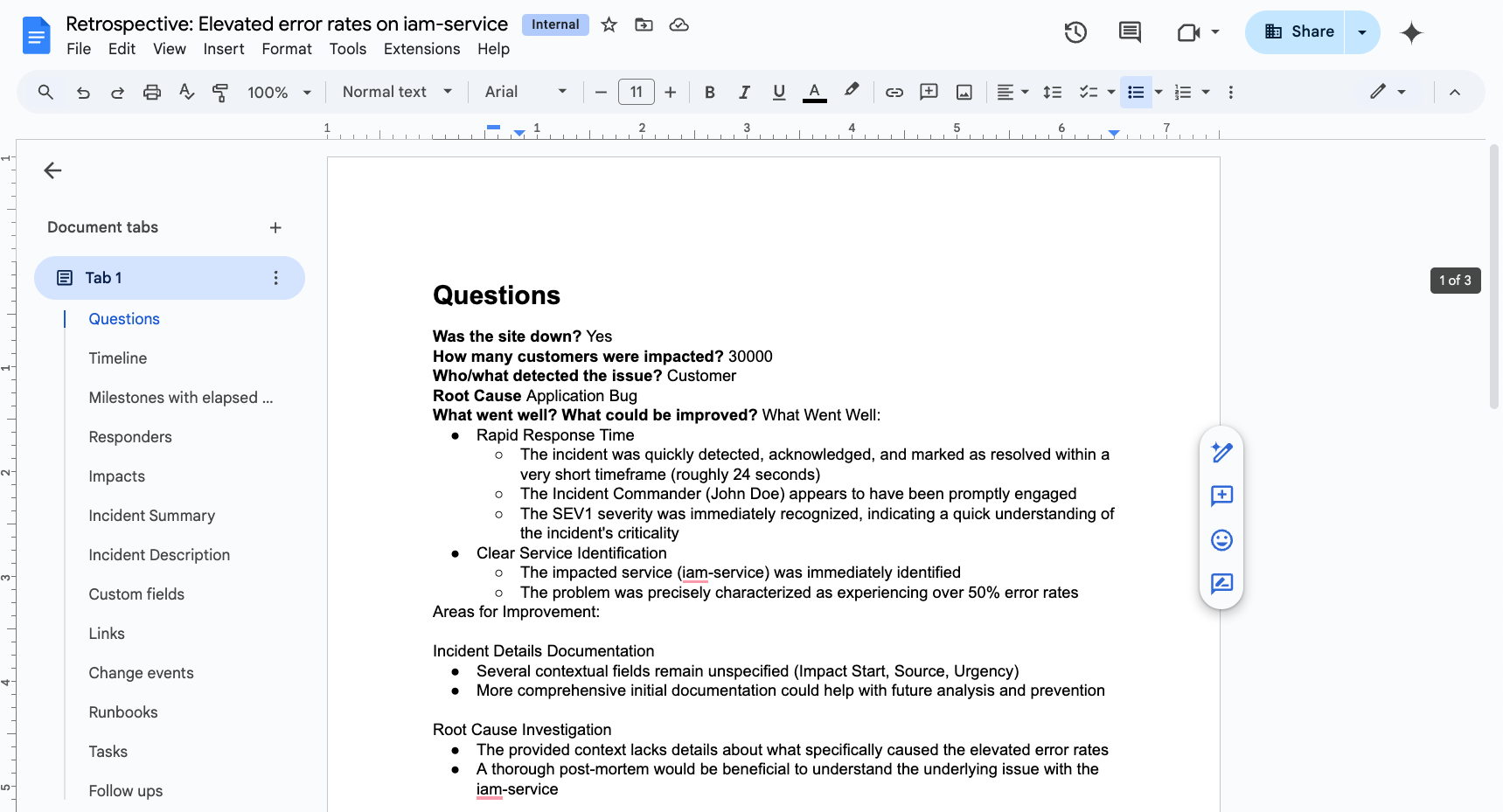
Example Google Docs export
Like the Confluence export, Google Docs also supports two different Runbook steps:
- Export Incident Retrospective Template(s) to Google Docs - Exports all attached Retrospective templates as configured to Google Docs
- Export Retrospective to Google Docs - Exports a specific, configurable template in standard Markdown to Google Docs, which is fully configurable and editable within the Runbook step
Generally the first step to export Template(s) will meet most use cases, but advanced users who want full control and configurability over what gets exported to Google Docs can use the 2nd step which supports Markdown and Template Variables.
Manually-initiated export
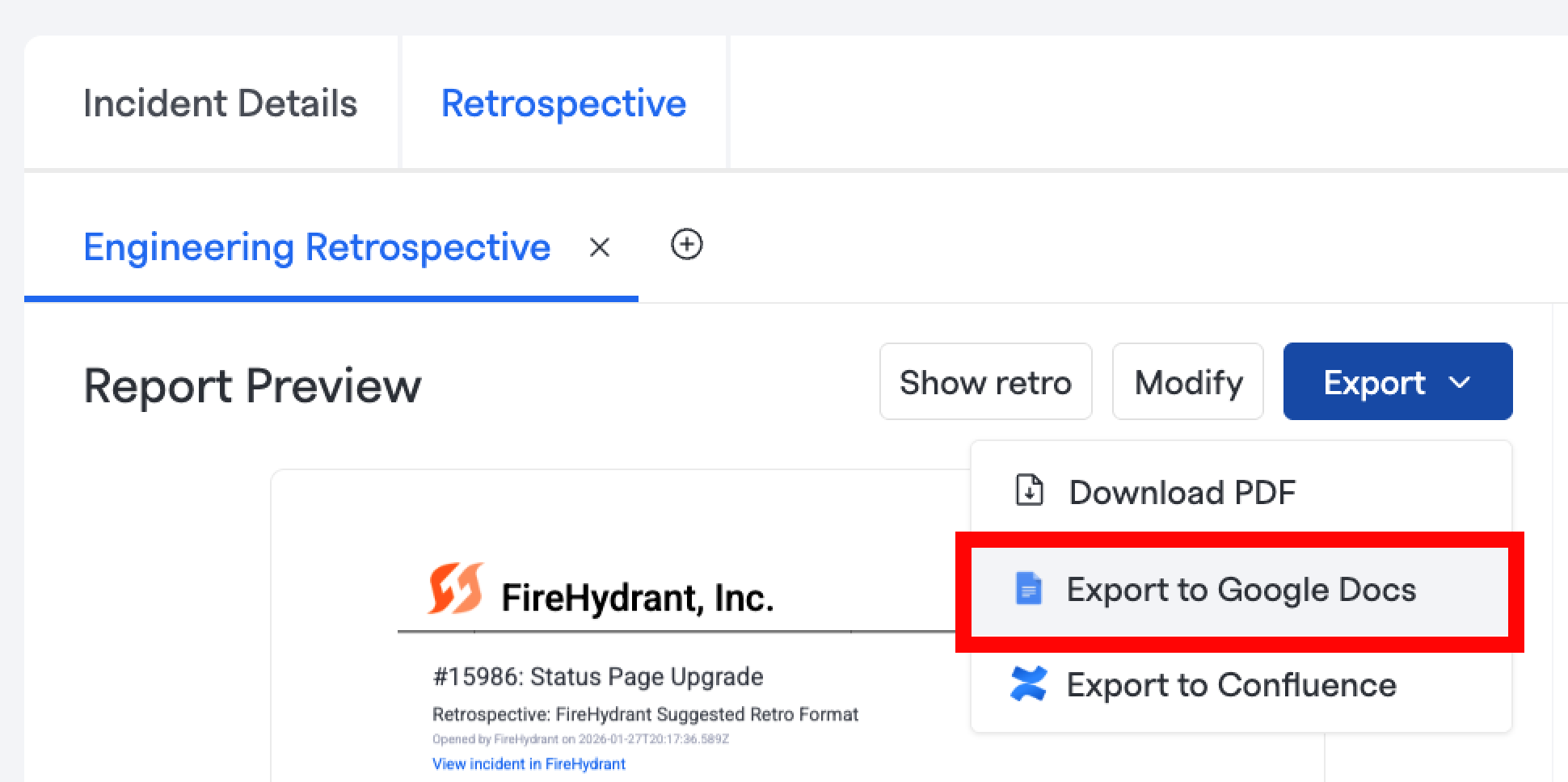
Manual "Export to Google Docs" Button
Outside of Runbooks, you can also directly initiate an export to Google Docs by clicking "Export" button in the Retrospective view and choosing "Export to Google Docs." This requires the integration to be installed but does not require the Runbook step.
Webhook & Template Variables
If the above options don't work for you, you can also make full use of Template Variables in Send a Webhook Runbook step.
This step allows you full control over a payload that is sent to any external destination reachable by HTTPS, so this can be used to send any incident data practically anywhere else. For more information, visit the links above.
Updated 7 months ago