

Freshservice
You can integrate FireHydrant with Freshservice to connect incident response workflows across both platforms. This integration enables you to connect Freshservice tickets with FireHydrant incidents, manage incidents from either platform, and maintain shared context across teams. It helps IT and engineering teams stay aligned and coordinate response efforts more effectively.
Use this procedure to connect your Freshservice account and enable integrated incident management between FireHydrant and Freshservice.
Note:The Freshservice and FireHydrant integration is an administrative process. Only users with Account Admin permissions in Freshservice and "Manage Integrations" permissions in FireHydrant can complete the installation. Individual agents do not need to perform this manual installation or configuration. After the integration is complete, the Freshservice widget is displayed on the incidents.
Install and set up FireHydrant for Freshservice
Integrating FireHydrant with Freshservice allows IT Operations teams to streamline incident management by synchronizing incident data and providing real-time visibility within the service desk.
Freshservice integrations support OAuth2 authentication, which provides a secure way to connect your Freshservice account to FireHydrant without sharing API keys.
Prerequisites
Before starting the integration, ensure you meet the following requirements:
- Freshservice Permission: You must be an Account Administrator in Freshservice
- FireHydrant Permission: You must have Owner access in FireHydrant.
Authentication Method
FireHydrant uses OAuth2 to authenticate with your Freshservice account. During setup, you'll be redirected to Freshservice to authorize the connection. This is more secure than using API keys and doesn't require managing credentials in FireHydrant.
Follow these steps to install and set up FireHydrant for Freshservice:
-
Log in to FireHydrant.
-
Click settings icon to open the settings page.
-
On the left menu, under Integrations, click Integration List.
The Integration page appears and shows all the available integration options.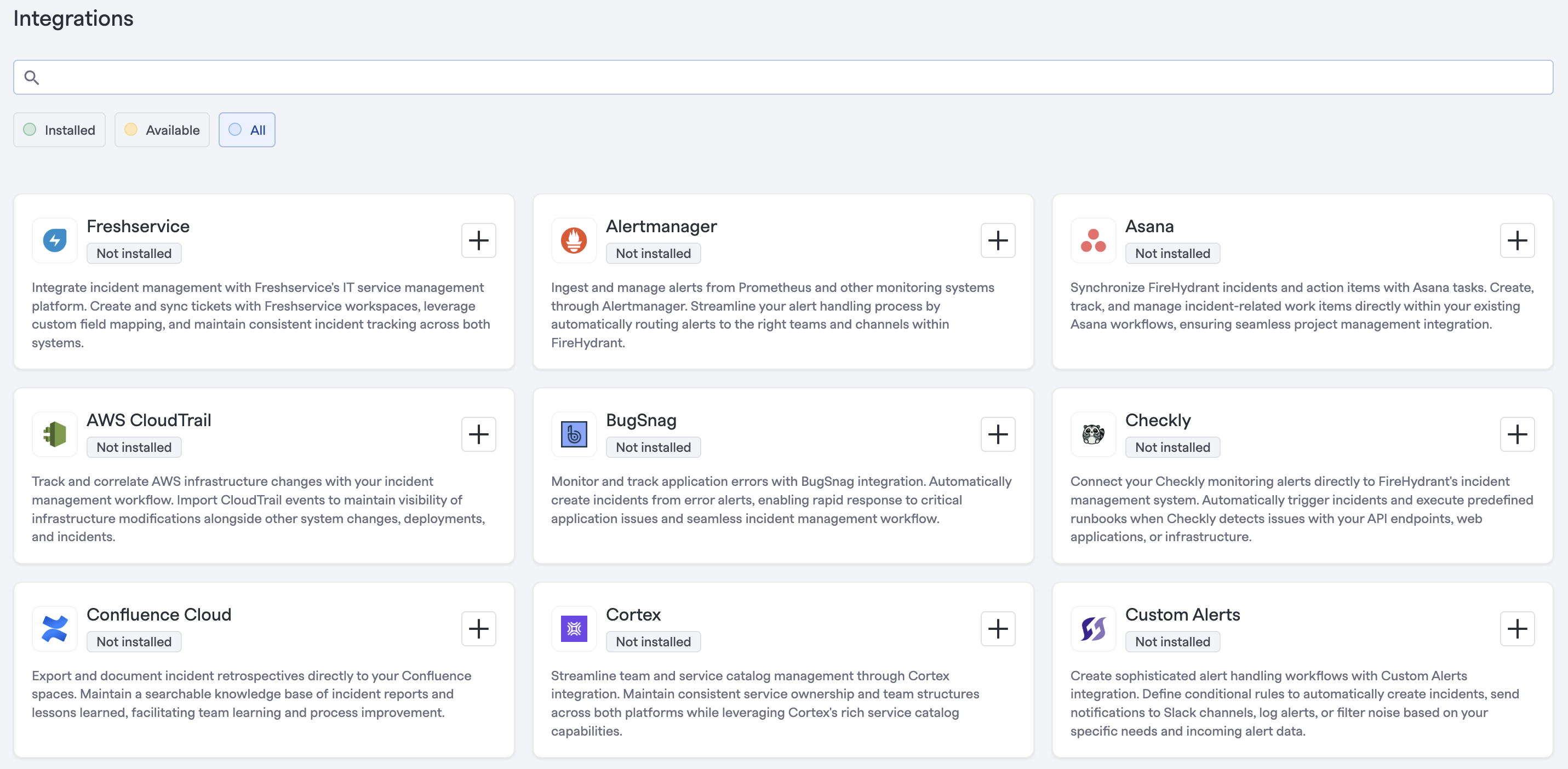
-
Select Freshservice.
-
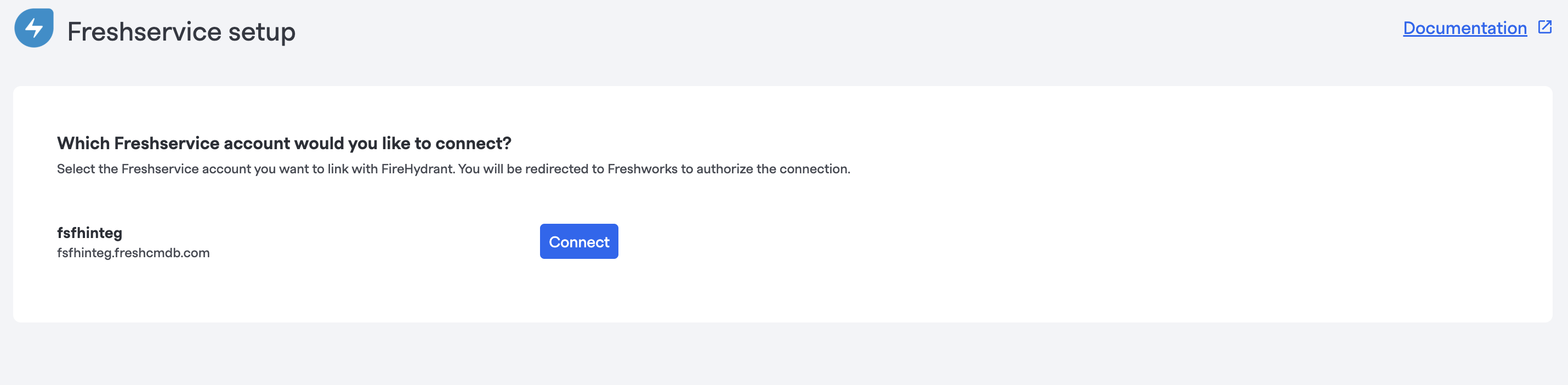
Click Connect.
-
You will be redirected to Freshservice to authorize the connection. Select your Freshservice account and click Connect.
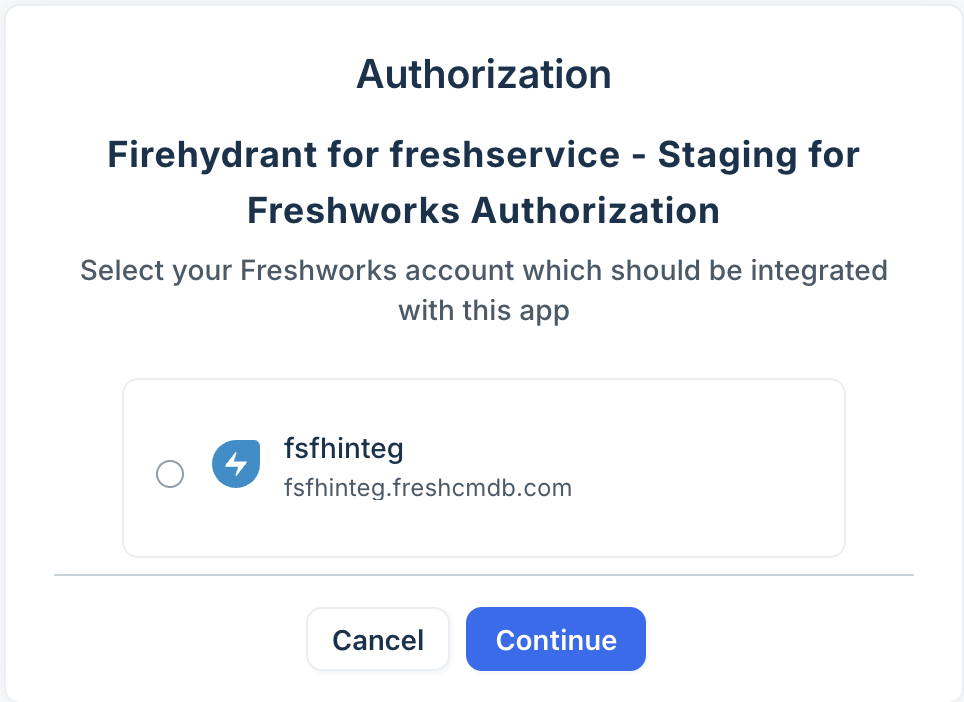
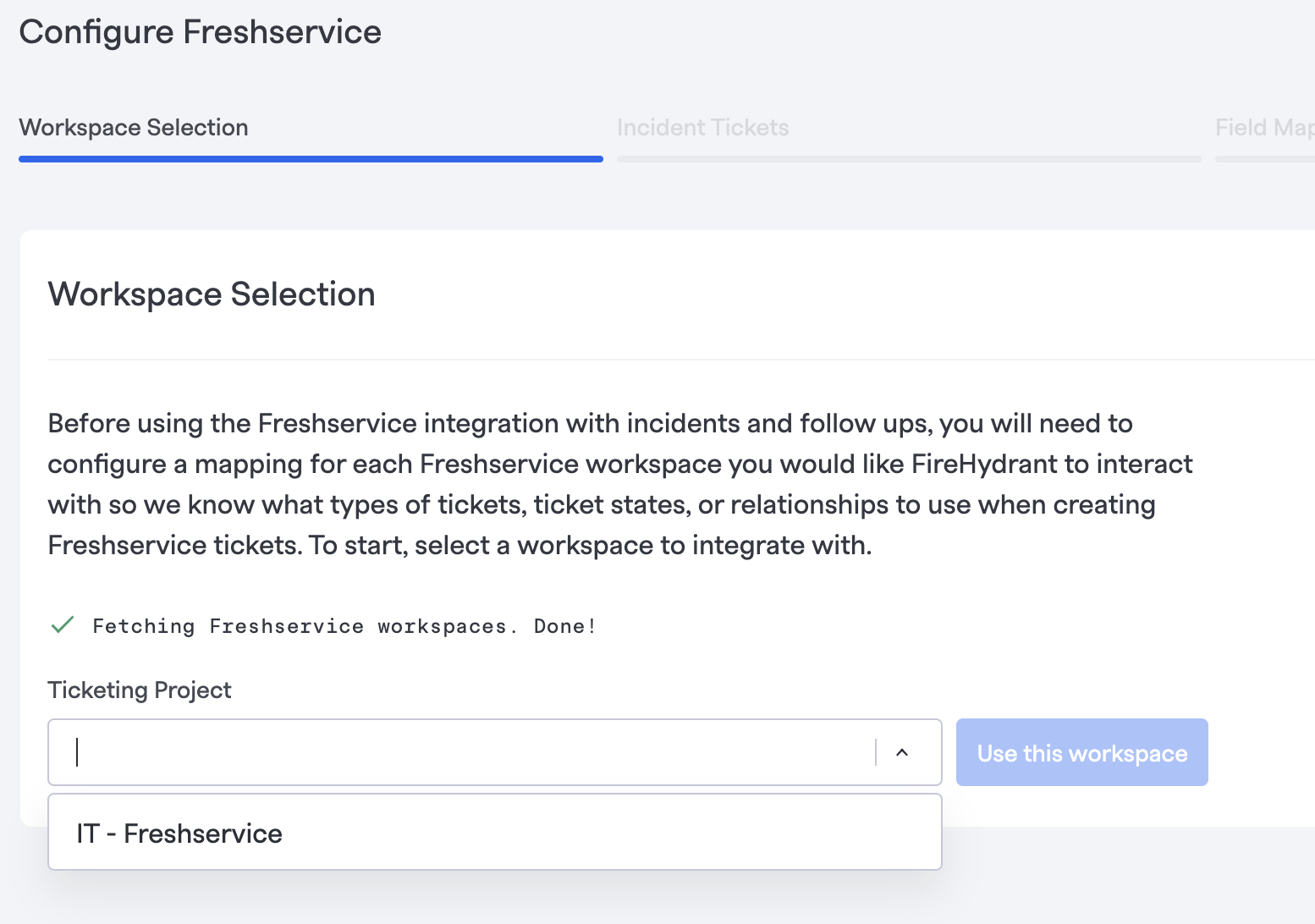
The Workspace Selection page appears and shows all your workspaces.
-
Select your Workspace and click Use this workspace > Continue.
-
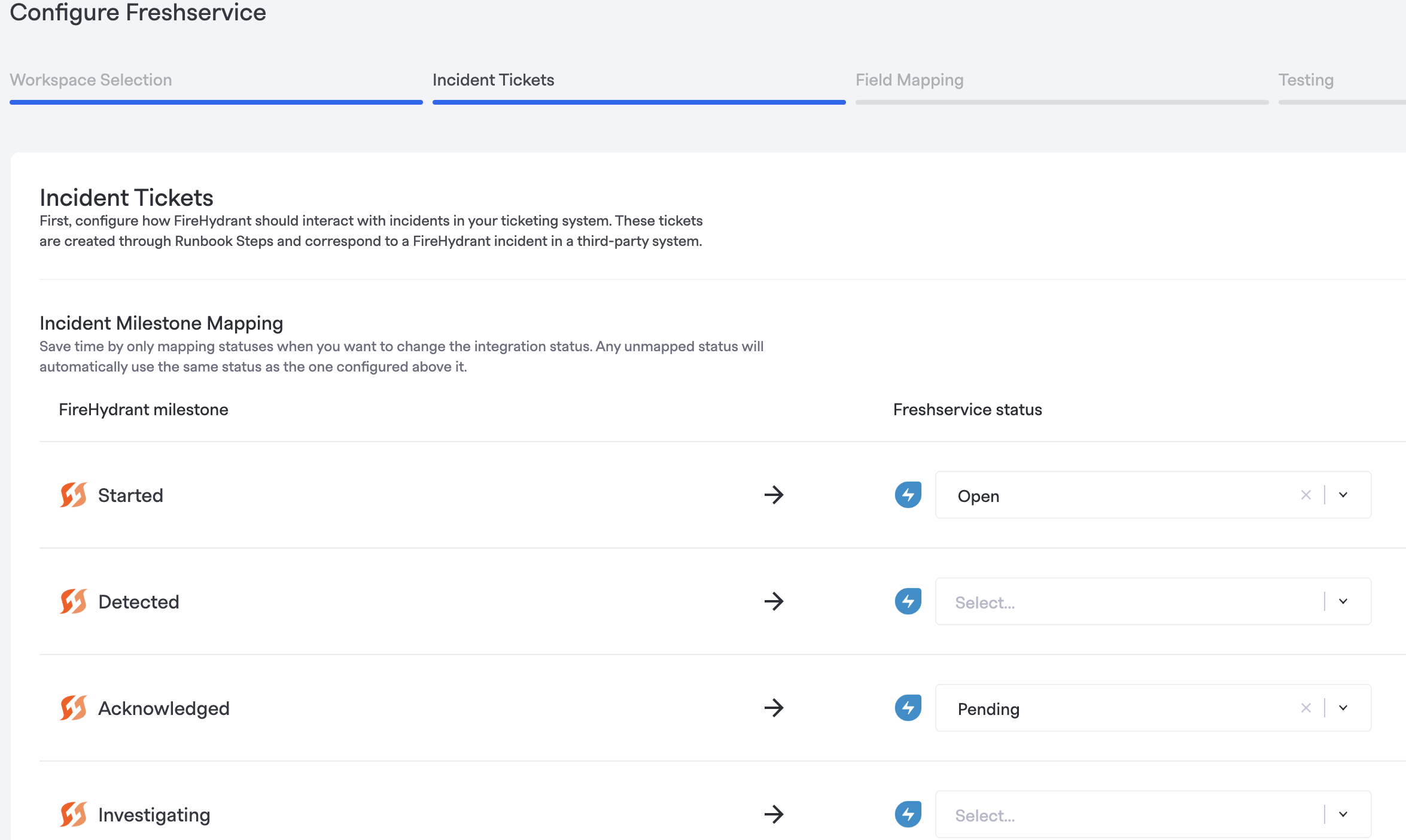
Under Incident Tickets, configure how FireHydrant should interact with incidents in Freshservice.
-
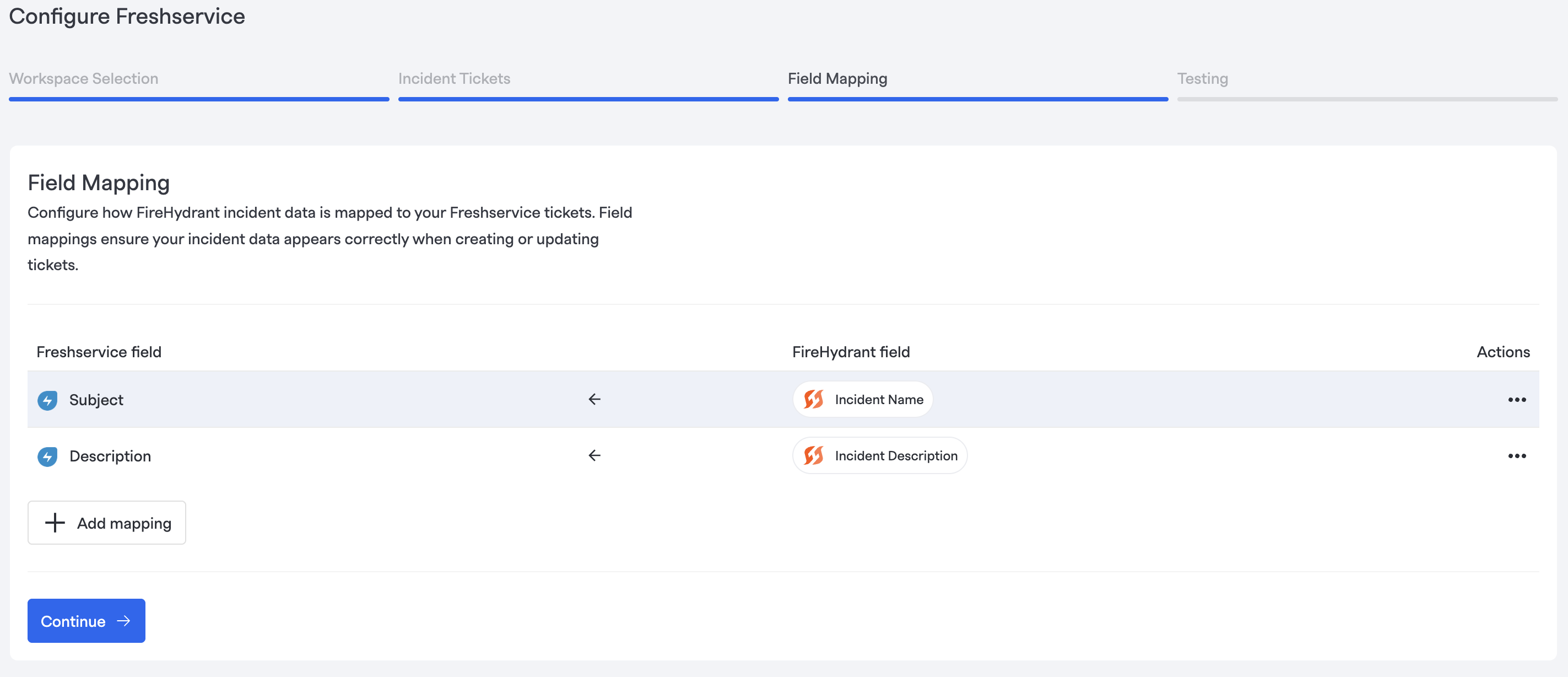
Under Field Mapping, configure how FireHydrant incident data is mapped to your Freshservice tickets.
-
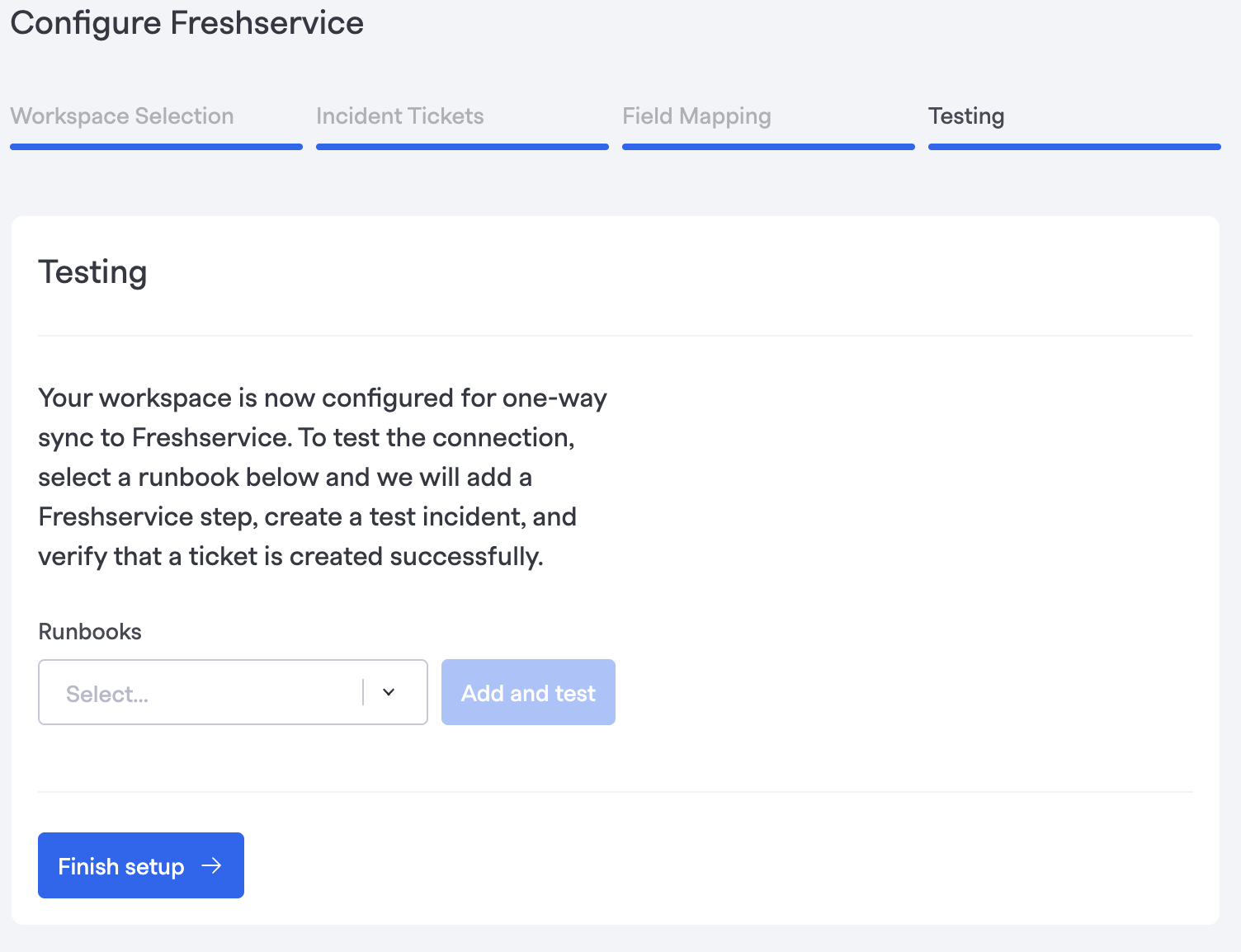
Select the required runbook and click Add and Test.
-
After the test is complete, click Finish setup.
The following page is displayed to confirm the integration.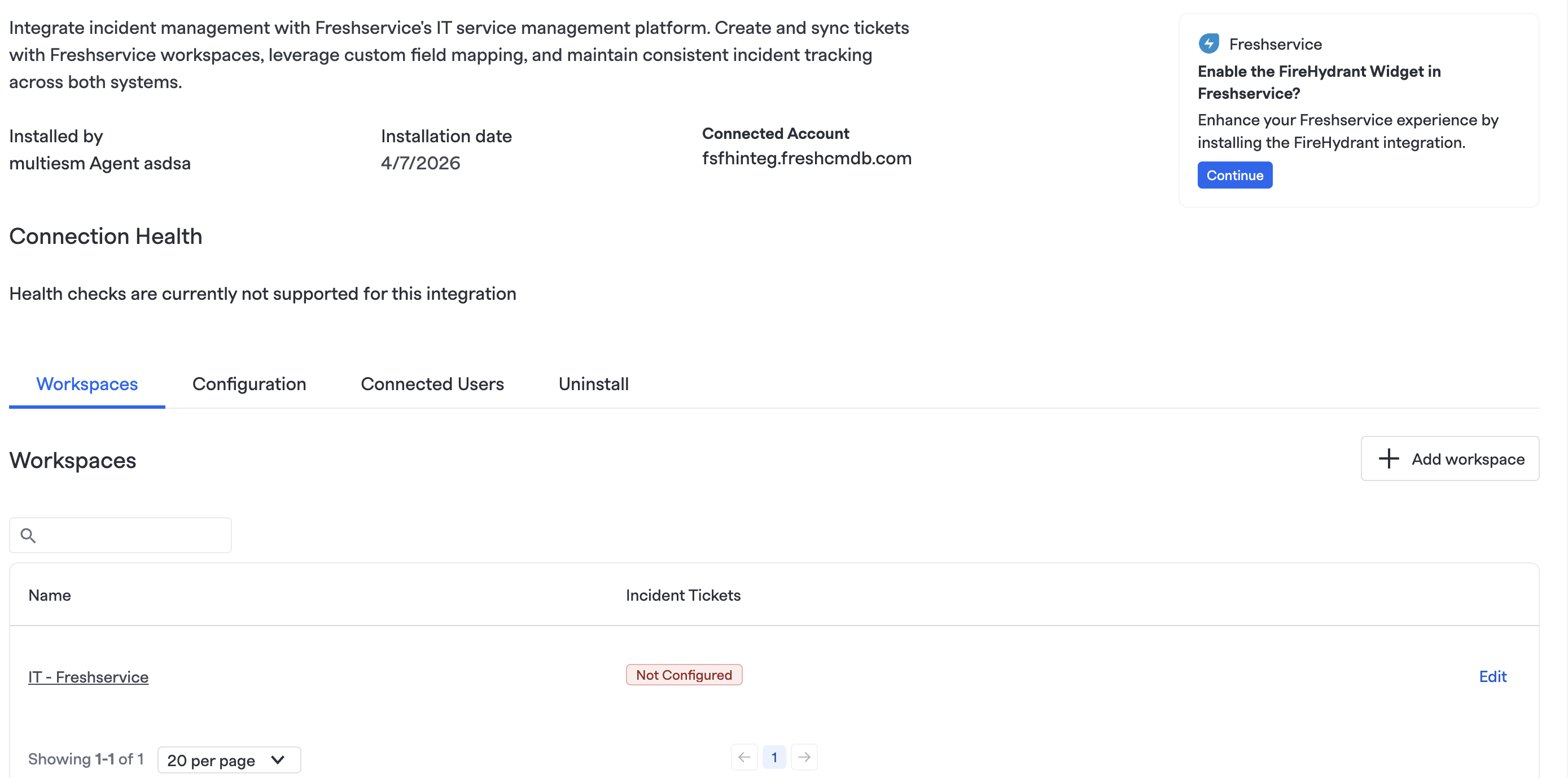
You can click + Add workspace to add more workspaces.
Updated 7 months ago