

Migrating On-Call Rotations to Overrides
Overrides are now the only way to change a shift on a rotation — reassigning a shift, requesting coverage, and removing coverage are all implemented as overrides rather than edits to the generated schedule (see Overrides). To support that, FireHydrant needs to know what a rotation's shifts looked like before any manual changes were made to them, so it can always revert an override back to the original shift.
Rotations that existed before July 24, 2026 were never generated with that information attached, so they aren't ready to use overrides yet. This guide walks through the one-time migration that brings an older rotation onto the overrides system — including how to make sure shifts you've already hand-edited aren't lost in the process, and how to review exactly what will change before you confirm it.
This migration is scoped to a single rotation, not an entire schedule. If a schedule has multiple rotations (for example, a Primary and a Secondary), each one is migrated independently the first time you open its Overrides tab.
Prerequisites
- You need the Manage Schedules permission on the rotation's team to migrate a rotation.
- Know which upcoming shifts on the rotation, if any, were manually reassigned outside of the normal schedule (swaps, vacation coverage, etc.) — you'll need to identify these yourself in Step 4.
Step 1: Open the Overrides Tab for the Rotation
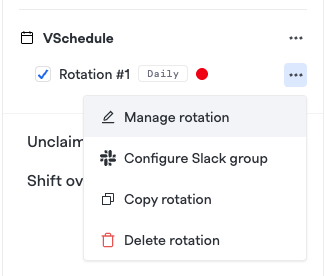
- Navigate to the team's On-call Schedules tab and find the rotation you want to check.
- Click the ••• menu next to the rotation and select Manage Rotation.
- Switch to the Overrides tab.
If the rotation has already been regenerated since July 24, 2026, you'll see the normal override tools described in Viewing and editing overrides — you don't need this guide. If it hasn't, you'll instead see a message explaining that overrides aren't enabled yet for this rotation, along with a warning about the July 24, 2026 cutoff and three collapsed sections below it: Responders (Step 1 of 3), Effective Date & Time (Step 2 of 3), and Shifts to preserve (Step 3 of 3). The rest of this guide walks through those three sections, plus the live comparison calendar shown alongside them.
The Current vs. Regenerated calendar on the right side of this view is visible the entire time you're working through the three sections below — it isn't a separate step. See Watching the Current vs. Regenerated Preview for what it shows and how to use it.
Step 2: Confirm Responders
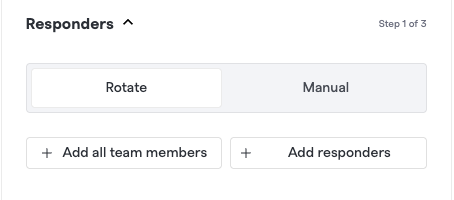
Expand Responders (Step 1 of 3) to review who's on the rotation. This is the same responder list and order used by the rotation's normal configuration — you're not required to change anything here, but it's worth confirming it's still correct before you regenerate, since the rebuilt shifts will be assigned from this list.
Step 3: Choose an Effective Date and Time
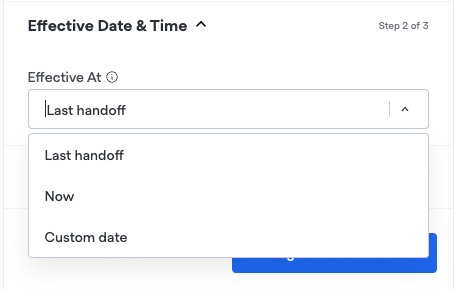
Expand Effective Date & Time (Step 2 of 3) and set the point in time from which shifts should be rebuilt:
- Last handoff — rebuild starting from the rotation's most recent handoff, leaving everything before that point untouched.
- Now — rebuild starting immediately, which may split whoever is currently on call mid-shift.
- Custom — rebuild starting at a prior custom time. This is specifically useful for custom rotation handoffs.
Shifts entirely before the effective date and time are left as-is; anything at or after it is regenerated. The next section shows you exactly which upcoming shifts fall into that window.
Step 4: Preserve Overrides for Manually-Edited Shifts
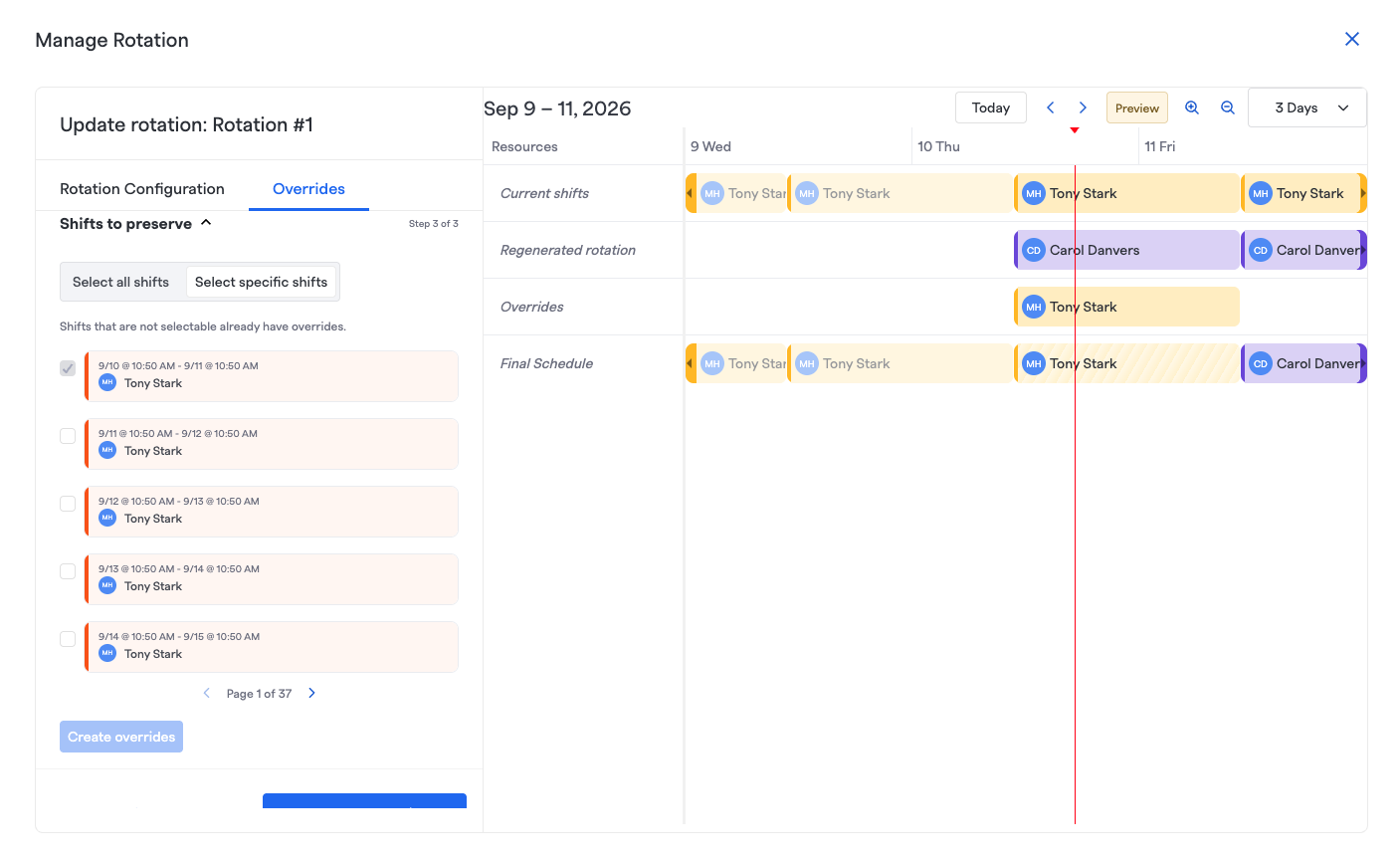
This is the step that determines whether your past manual shift changes survive the migration. Regenerating a rotation rebuilds its shifts from the rotation's configured responders and handoff pattern going forward — anything that isn't captured as an override before you regenerate is replaced by what the rotation would normally produce.
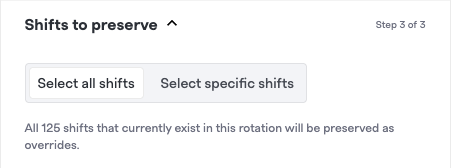
Because these older shifts were never tracked as overrides, preservation doesn't happen automatically here the way it does for a rotation that's already on the overrides system (see Editing Schedules & Rotations) — there's nothing yet for FireHydrant to preserve. Instead, expanding Shifts to preserve (Step 3 of 3) gives you two ways to flag which upcoming shifts to protect before you regenerate:
-
Select all shifts — bulk-creates overrides for every shift currently assigned on the rotation at or after the effective date and time you chose in Step 3. FireHydrant shows a count (for example, "All 127 shifts currently assigned in this rotation will be preserved as overrides.") so you can confirm the scope before regenerating. Use this when you want to carry the rotation forward exactly as it stands today, without reviewing shifts one by one.
-
Select specific shifts — the original checklist flow, for when only some shifts need to be preserved:
- This lists the rotation's upcoming shifts at or after the effective date and time you chose in Step 3.
- Check any shift you know was manually reassigned, shortened/lengthened, or otherwise changed by hand and that you want to keep exactly as it is.
- Click Create overrides. Each checked shift is converted into a real override record, so it's now tracked and preserved the same way any other override is — including through every future edit or regeneration of this rotation.
Whichever mode you use, any shift you don't cover — unchecked under Select specific shifts, or all of them if you skip this step entirely — will be regenerated to match the rotation's normal pattern instead of being preserved. You'll see this reflected immediately in the preview described below.
Watching the Current vs. Regenerated Preview
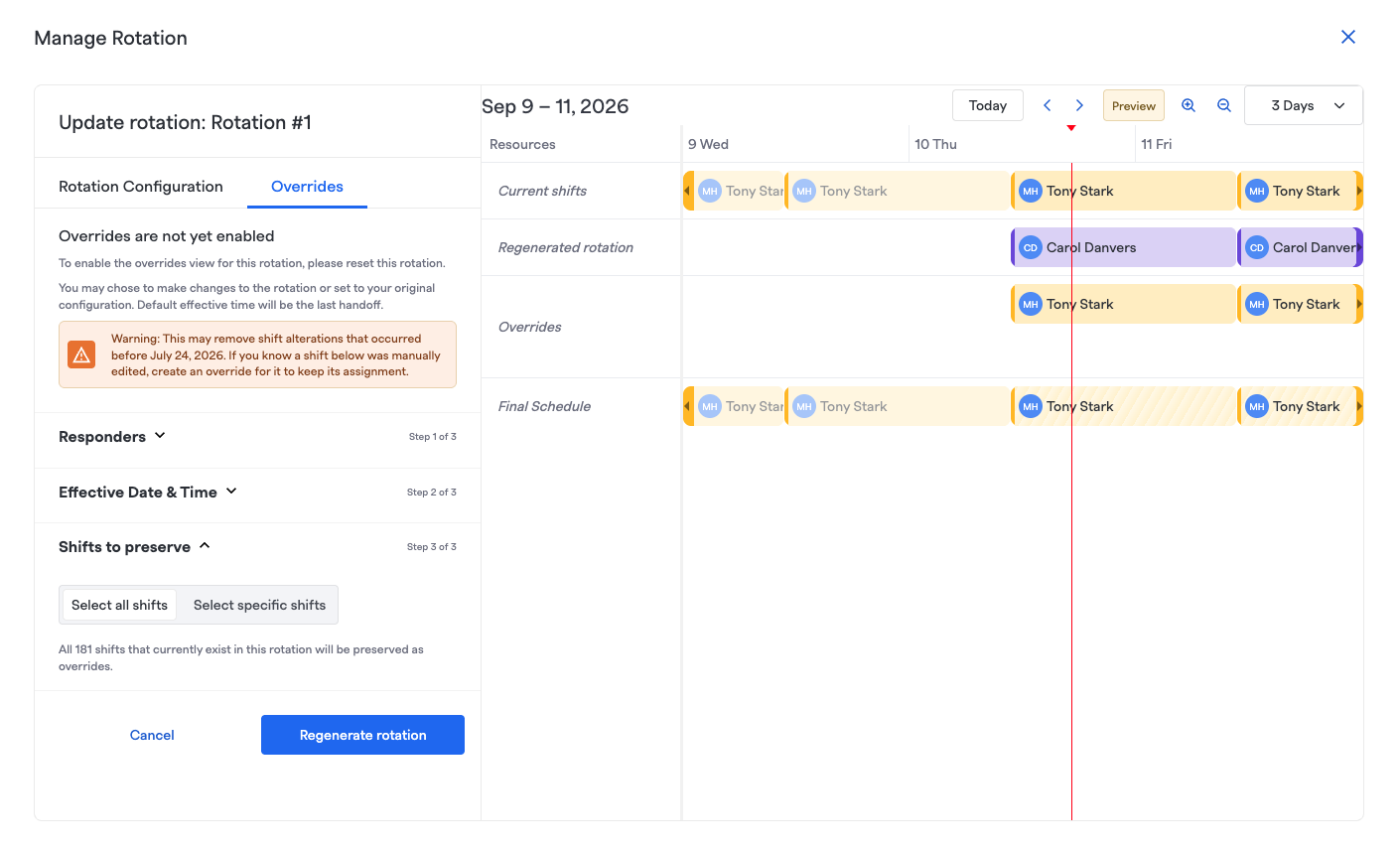
Alongside the three sections above, the Overrides tab shows a calendar with four rows — Current shifts, Regenerated rotation, Overrides, and Final Schedule — for as long as you're working through this migration:
- Current shifts — the rotation's actual, persisted shifts as they exist today.
- Regenerated rotation — a live simulation of what the rotation's configured responders and handoff pattern would produce on their own, with no overrides applied.
- Overrides — the overrides that will exist after this migration, including any you create in Step 4, whether via Select all shifts or Select specific shifts.
- Final Schedule — Regenerated rotation with Overrides layered on top. This is what will actually be committed to the rotation once you click Regenerate rotation in Step 5.
All four rows update immediately as you adjust responders, the effective date, or which shifts you preserve in Step 4.
The calendar has its own toolbar — a date range with Today/back/forward controls, zoom in/out, a duration selector, and a Preview toggle — so you can scrub through future weeks and confirm the schedule looks right before committing anything. Use Final Schedule to confirm the end result matches what you expect, and use Regenerated rotation and Overrides individually to see why any given shift ended up the way it did.
Nothing here is saved until you confirm in the next step — you're free to go back and adjust any of the three sections above and watch all four rows update again.
Step 5: Confirm the Regeneration
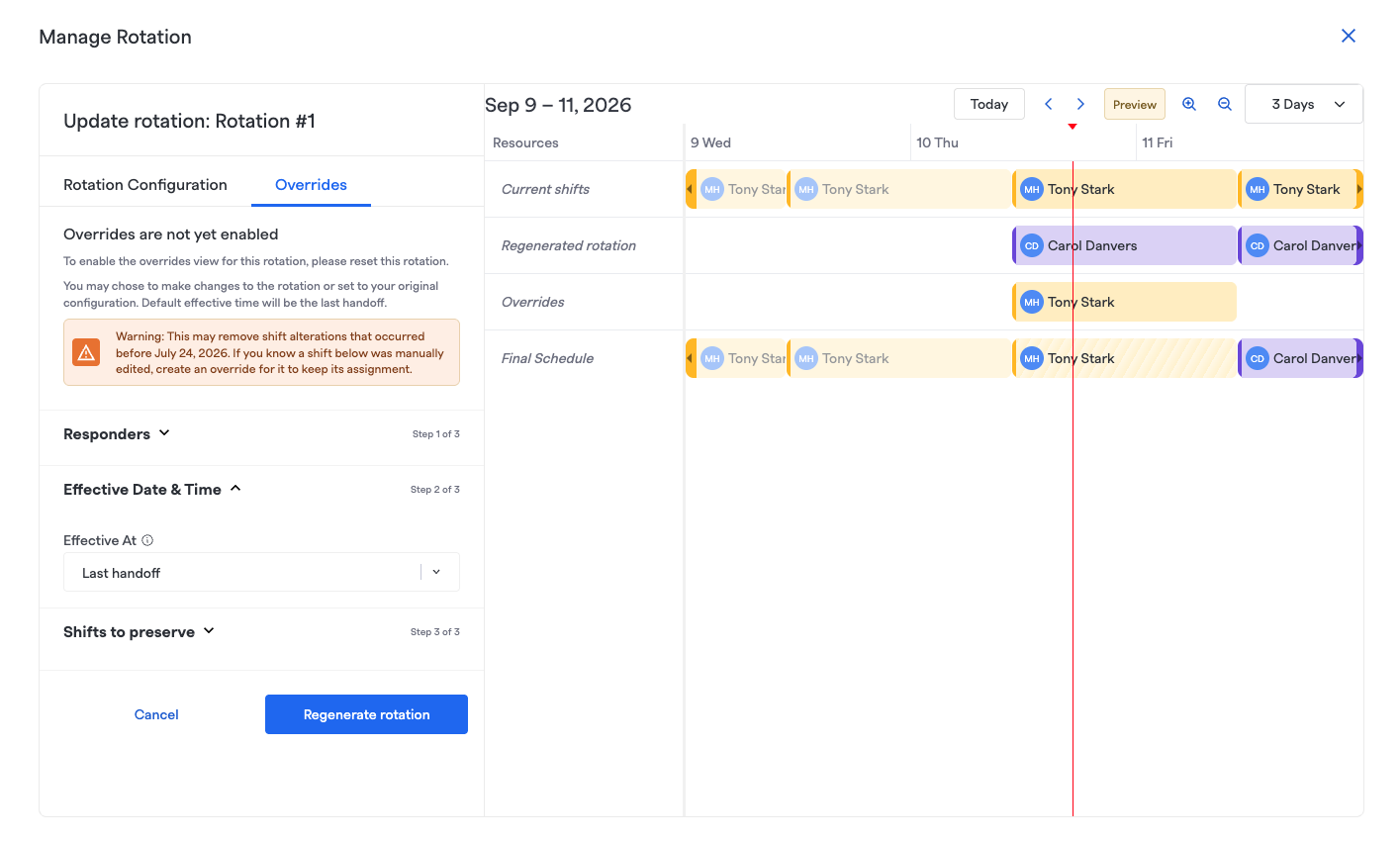
Click Regenerate rotation to confirm. This will:
- Delete and rebuild the rotation's shifts from the effective date and time forward, based on its configured responders and handoff pattern.
- Re-apply every override that overlaps that window — including the ones you just created in Step 4 — on top of the rebuilt shifts, if "Select all shifts" is selected in the "Shifts to preserve"
Once this completes, the rotation is fully on the overrides system. You won't see this migration prompt again for it, and it now behaves like any other rotation described in Overrides — including the fact that, from this point forward, any override you create is preserved automatically across future edits or regenerations, with no need to repeat the "shifts to preserve" step again.
If you'd rather skip choosing individual shifts and just accept a clean slate, you can regenerate without creating any overrides in Step 4 — the rotation will simply come out matching its configured pattern exactly, with no manual history carried over.
Viewing Current Shift vs. Regenerated Rotation
The four-row preview described above — Current shifts, Regenerated rotation, Overrides, and Final Schedule — is easy to confuse with a rotation's ongoing current/next shift, but they answer different questions:
- Current (and next) shift — this is the live, ongoing state of the rotation: who's on call right now and who's up next. You can see it in the team sidebar, on shift popovers, and by switching the on-call schedules calendar to the Current/Next Shifts viewing mode (see Viewing schedules). This view exists at all times for every rotation, whether or not it's been migrated.
- Regenerated rotation / Overrides / Final Schedule preview — this only exists while you're actively inside the migration/reset flow described above. It's a side-by-side simulation — not yet saved — that lets you compare the rotation's real, persisted shifts (Current shifts) against what your in-progress changes would produce: Regenerated rotation shows the pattern alone, Overrides shows what you've preserved in Step 4, and Final Schedule shows the two combined — so you can catch problems before clicking Regenerate rotation. Once you confirm the regeneration, this preview disappears and the Final Schedule row becomes the new persisted state for the rotation.
In short: check current/next shift any time you want to know who's on call. Only look for the four-row preview while you're mid-migration and deciding whether to commit a change.
Migrating via the API
The UI flow above is best for migrating a handful of rotations by hand. If you're migrating many rotations at once — for example, scripting a full-account cutover from Terraform-managed schedules — you can drive the same regeneration directly through the API instead. This is the same underlying action as Select all shifts in Step 4: every shift on the rotation at or after the effective timestamp is converted to an override, with no equivalent of Select specific shifts available via the API.
-
Enumerate targets. If you don't already have rotation IDs on hand (e.g. from Terraform state), first
GETschedules, then for each scheduleGET /schedules/:schedule_id/rotationsto get its rotation IDs. The rotations endpoint is nested under a schedule — there's no single "list all rotations in the account" call, so you loop over schedules. -
Trigger regeneration per rotation. For each rotation ID, call:
PATCH /rotations/:rotation_id { "regenerate": true, "convert_shifts_to_overrides": true, "effective_at": "<cutoff timestamp>" } -
Understand what happens next, for your script's flow control. The
PATCHrequest itself returns quickly — a200means the regeneration was accepted, not that it's done. The actual work (truncating future shifts, converting them to overrides, and rebuilding the schedule) happens asynchronously after the response comes back. -
Verify completion, if your script needs to confirm success rather than fire-and-forget. There's no job-status endpoint, so the only way to confirm a conversion has landed is to poll
GET /rotations/:rotation_id/overrides(orGET /rotations/:rotation_id) after a short delay and check that overrides now exist covering the expected window. Build a short poll/retry loop per rotation rather than assuming success immediately after thePATCH. -
Pace the loop. Each
PATCHkicks off real work against the rotation, so looping through many rotations back-to-back is fine for correctness — but add a small delay between requests to avoid overwhelming the system on a large account.
As with Select all shifts in the UI, this preserves every in-scope shift as an override — there's no way to selectively preserve individual shifts through the API. If you need that level of control, use Select specific shifts in the UI instead.
Next Steps
- Overrides — how to create and cancel overrides once a rotation is ready for them
- Editing Schedules & Rotations — how overrides are preserved automatically on every future edit or regeneration
- Requesting Coverage for a Shift — coverage requests are also implemented as overrides under the hood
Updated 8 days ago