

Create Account and Manage Plans
Create a FireHydrant trial account and manage your subscription plans
Getting Started with a FireHydrant Account
You can get started with FireHydrant by creating a trial account using your professional email ID. This gives you a free account with all Pro plan benefits for 14 days to explore the platform.
To create your account, you'll need a professional email address and the ability to access your email for verification.
Create Your Trial Account
- Go to the FireHydrant signup page
- Enter your professional email ID and click Continue
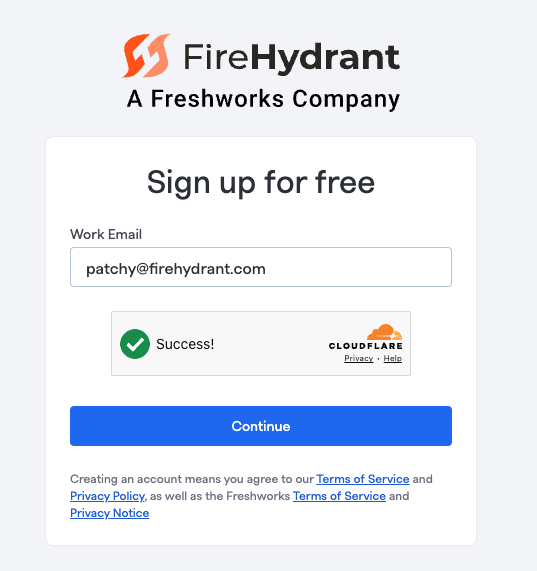
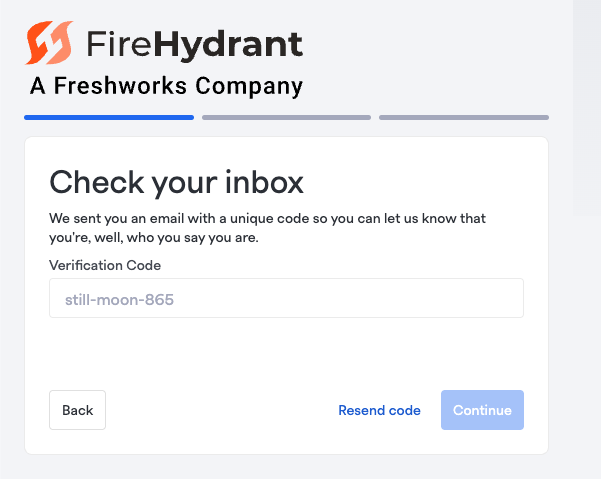
- Check your email for a verification code
- Enter the verification code and click Continue
- Enter your account details and click Create
Once your account is created, you'll be redirected to the Welcome page where you can start monitoring incidents and alerts.
Initial Setup and Integrations
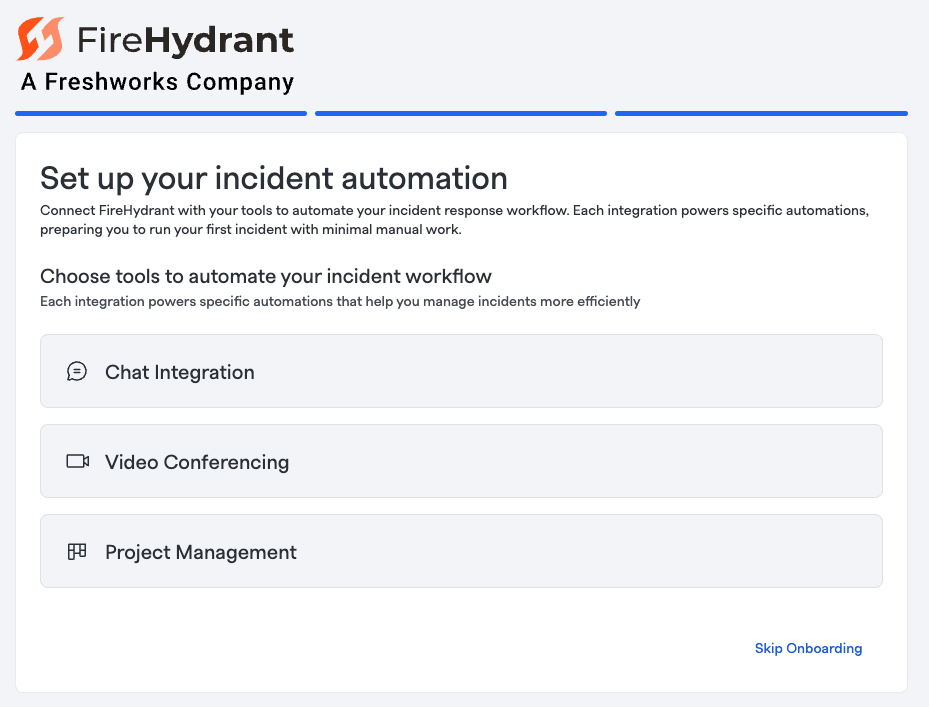
To get the most out of FireHydrant, you can optionally set up integrations during onboarding:
- Chat Integration — Connect Slack or Microsoft Teams to manage incidents without leaving your collaboration tool
- Video Conferencing — Integrate Zoom, Google Meet, or Webex to automatically create meeting bridges for incidents
- Project Management — Connect Jira, Linear, Asana, or ServiceNow to track follow-up work
For detailed setup instructions, see the Onboarding Integration Quickstart.
Access Your Billing Information
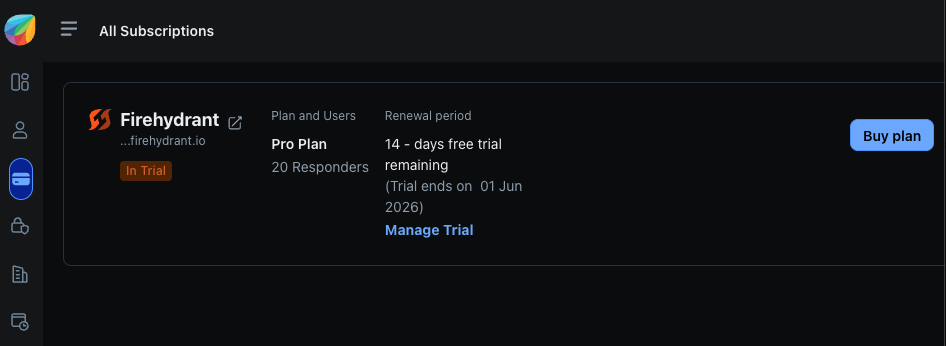
To view and manage your trial account details, go to Settings > Billings and Usage > Manage Billing. On your first visit, you'll need to log in with your FireHydrant credentials.
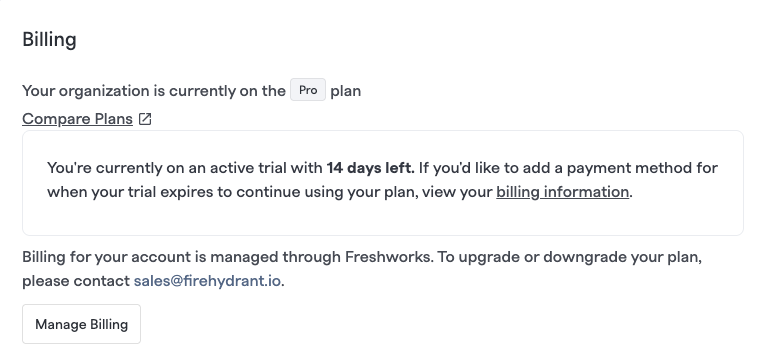
From the billing page, you can:
- View your trial status and remaining days
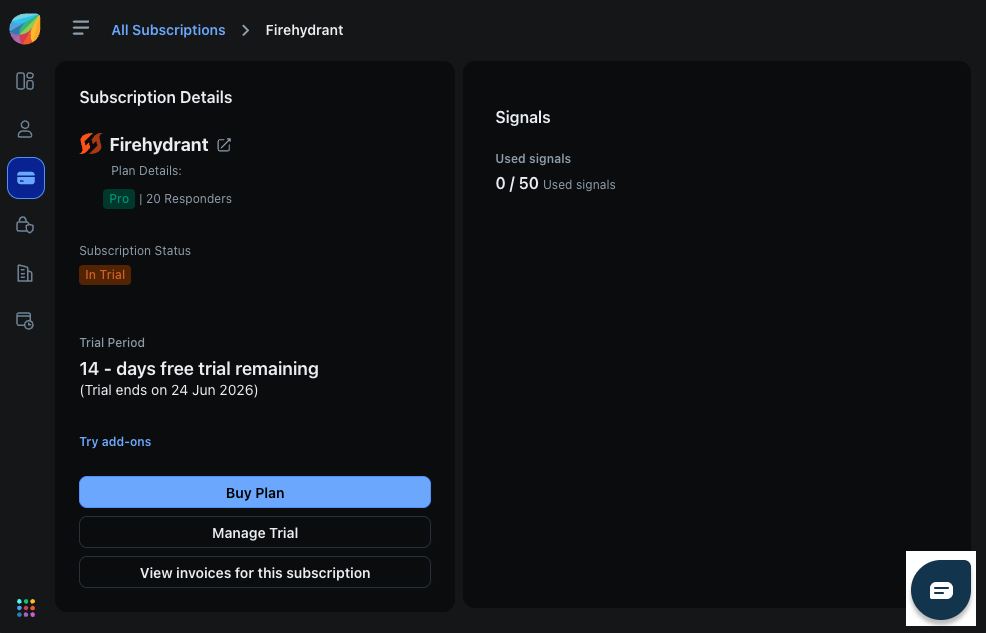
- Upgrade to a paid plan when you're ready
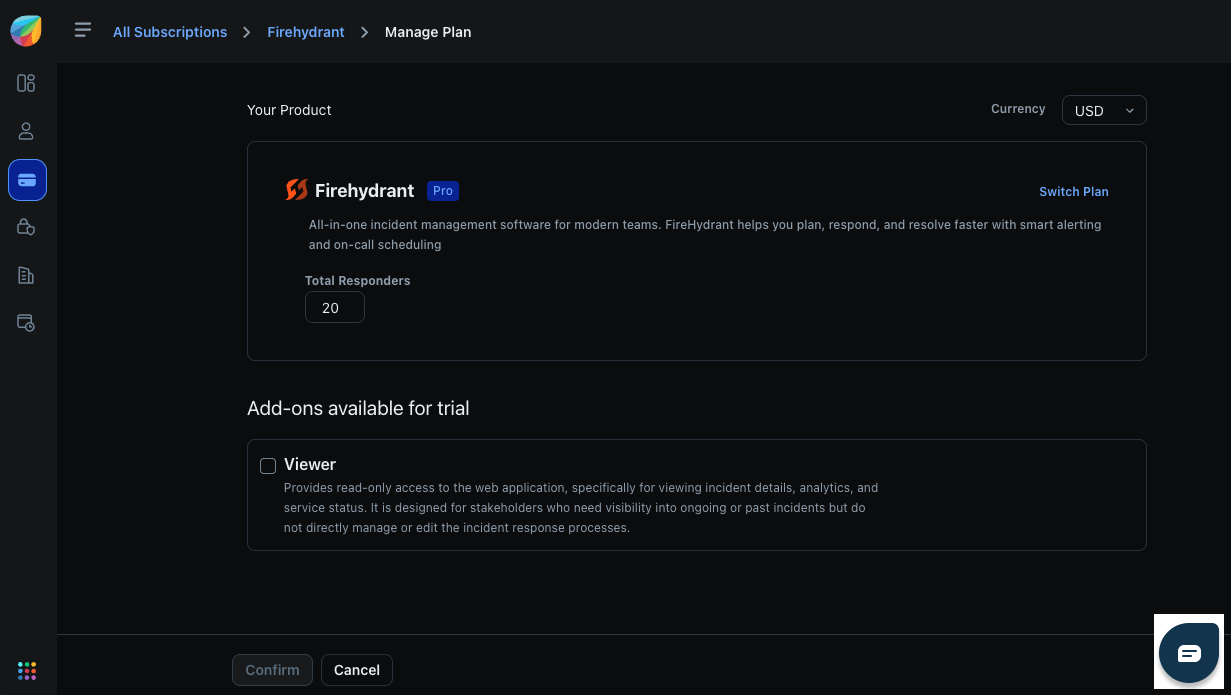
- Configure add-ons to increase responders and viewers
Understanding FireHydrant Plans
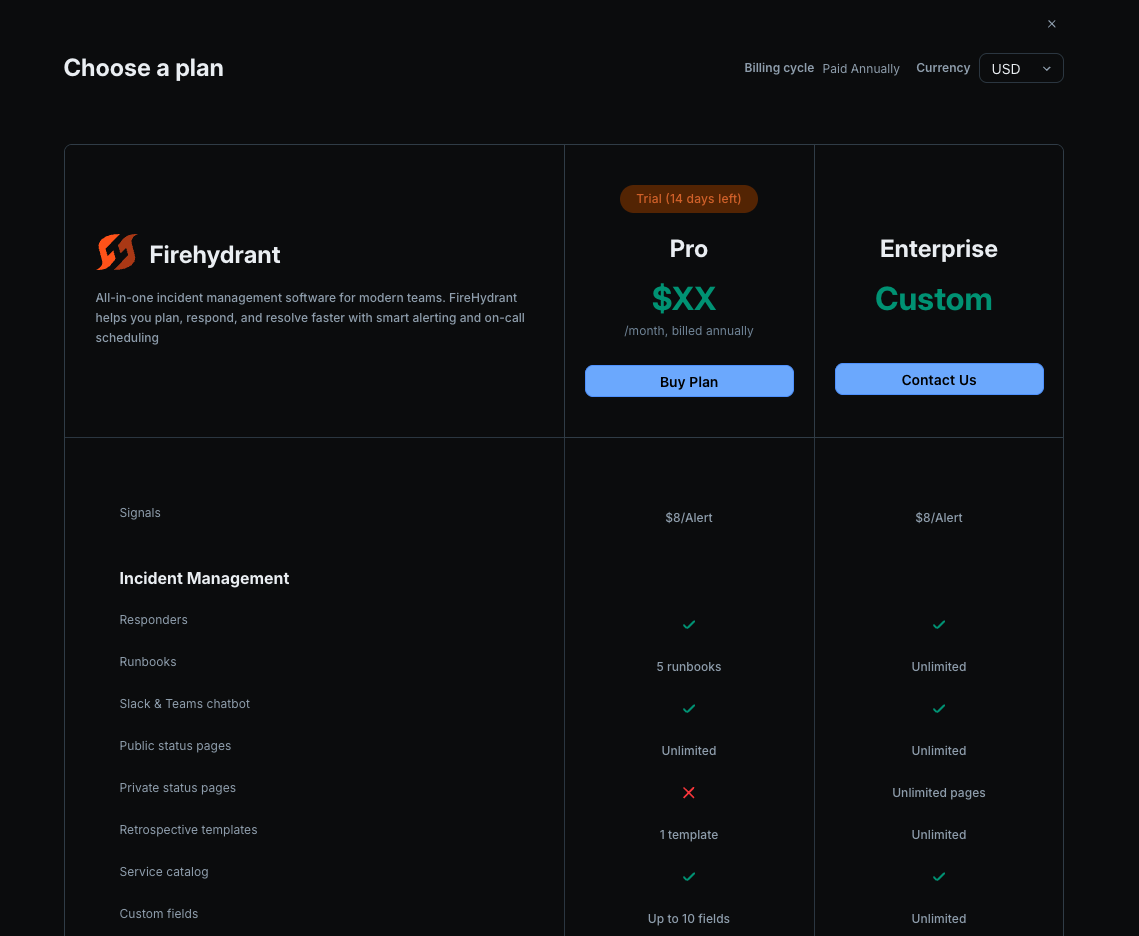
FireHydrant offers three flexible plans designed to support teams of different sizes and incident management needs:
Free Plan
When you first sign up, you receive a 14-day trial with full access to Pro plan features at no cost. If you don't upgrade after 14 days, your account automatically converts to a Free-forever plan with limited capabilities.
The Free-forever plan is ideal for small teams evaluating the platform.
Pro Plan
The Pro plan includes a comprehensive set of features for streamlined incident management:
- Full incident management capabilities
- On-call scheduling and alerting (Signals)
- Service Catalog for tracking dependencies
- Runbook automation
- Security and team administration
- Professional support with defined response times
You can subscribe to a Pro plan online or by contacting our sales team. The Pro plan is billed yearly and allows you to customize the number of responders and viewers based on your team size. You can also add optional add-ons to extend capabilities.
See Contacting Support for Pro plan support response times by priority level.
Enterprise Plan
The Enterprise plan is designed for large organizations requiring advanced capabilities:
- All Pro plan features
- Custom pricing and feature configurations
- Dedicated support and account team
- Enterprise-grade scalability and reliability
- Advanced security and compliance options
The Enterprise plan is only available by contacting our sales team, who will work with you to customize a plan that meets your organization's needs.
Managing Your Subscription
Upgrade to a Paid Plan
To upgrade from your trial account:
- Go to Settings > Billings and Usage > Manage billings
- You'll see the All Subscriptions page
- Click Buy Plan to purchase a Pro plan
Purchasing a Pro Plan
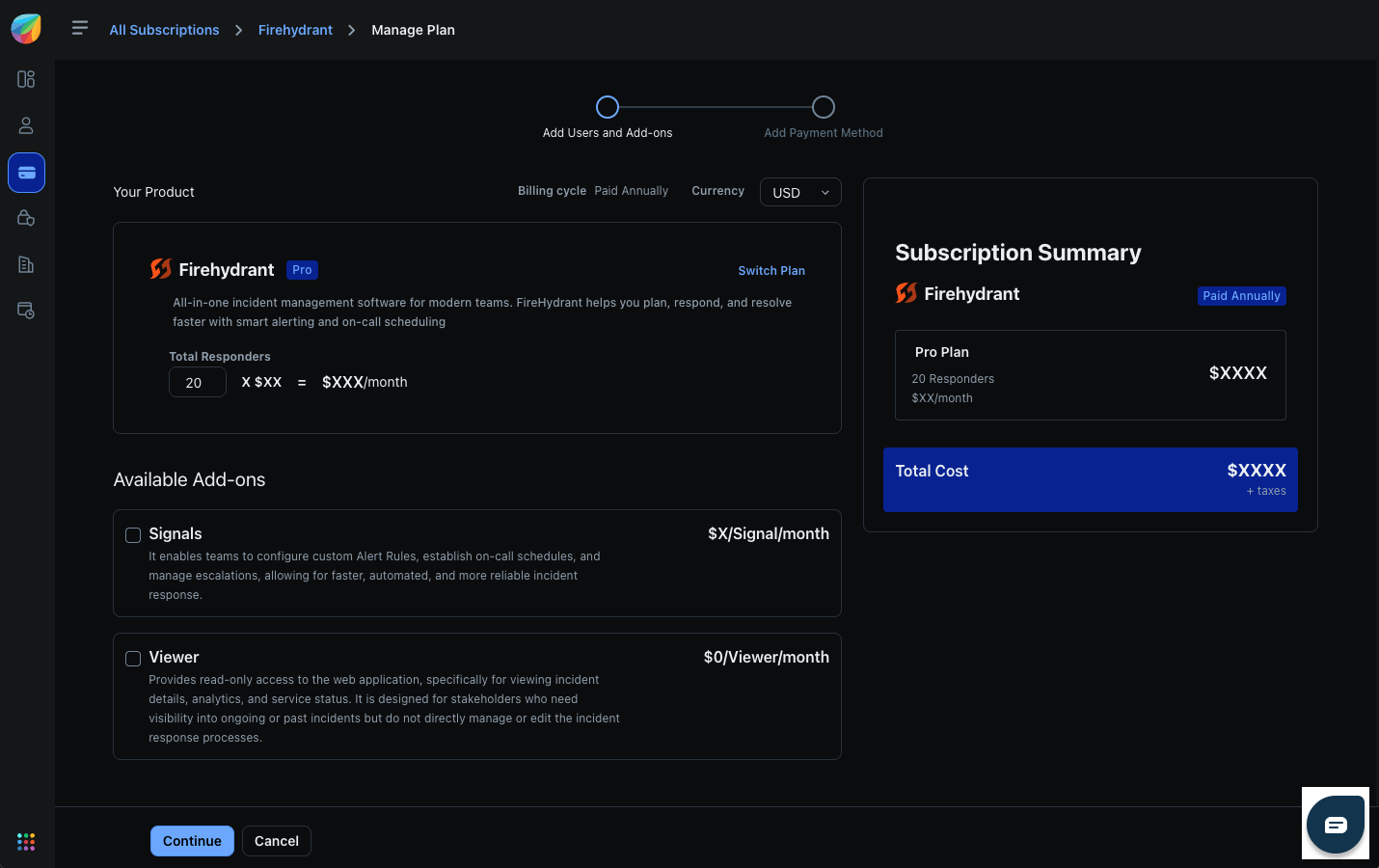
The Pro plan purchase flow includes:
- Select your currency from the available options
- Choose your team size by entering the number of responders
- Review available add-ons and select any that match your needs:
- Additional responders and viewers
- Premium support options
- Custom features
- Review and complete checkout — FireHydrant supports yearly billing only
- Enter your payment details to finalize your subscription
Contacting Sales for Enterprise
To explore the Enterprise plan:
- Go to Settings > Billings and Usage > Manage billings
- Click Manage Plan, then Switch Plan
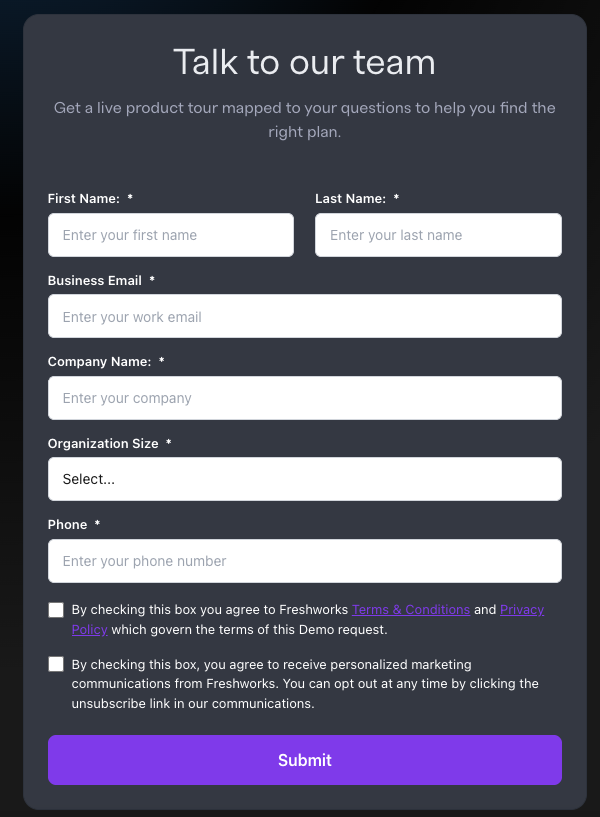
- Under Enterprise, click Contact Us
- Enter your organization details and submit the form
Our sales team will reach out to discuss your requirements and create a customized Enterprise plan for your organization.
Billing and Renewal
- Billing Frequency: FireHydrant supports yearly billing only. You'll be billed annually for your subscription.
- Subscription Management: You can manage your subscription, view usage, and update your billing information from Settings > Billings and Usage > Manage billings
- Plan Customization: Both Pro and Enterprise plans can be customized. Contact our sales team to discuss adding responders, additional features, or other adjustments to your plan.
For questions about your subscription or billing, reach out to our Support team.
Updated 4 months ago